
can change both later in Admin → Device → Manage PIN.
What you’ll need #
- Completed Idle screen setup (tap Continue on that step).
- A PIN you’ll remember (5 digits or more). The app may suggest a default (e.g. 12345) that you can change.
- Optional: a device that supports Face ID or Touch ID so you can unlock the admin panel with biometrics instead of typing the PIN.
Step 1: Open the Admin PIN step #
After you tap Continue on the Idle screen step, the Admin PIN (or “Admin PIN and security”) step appears. You’ll see an option to require a PIN for admin access and, if needed, where to set or confirm your PIN.
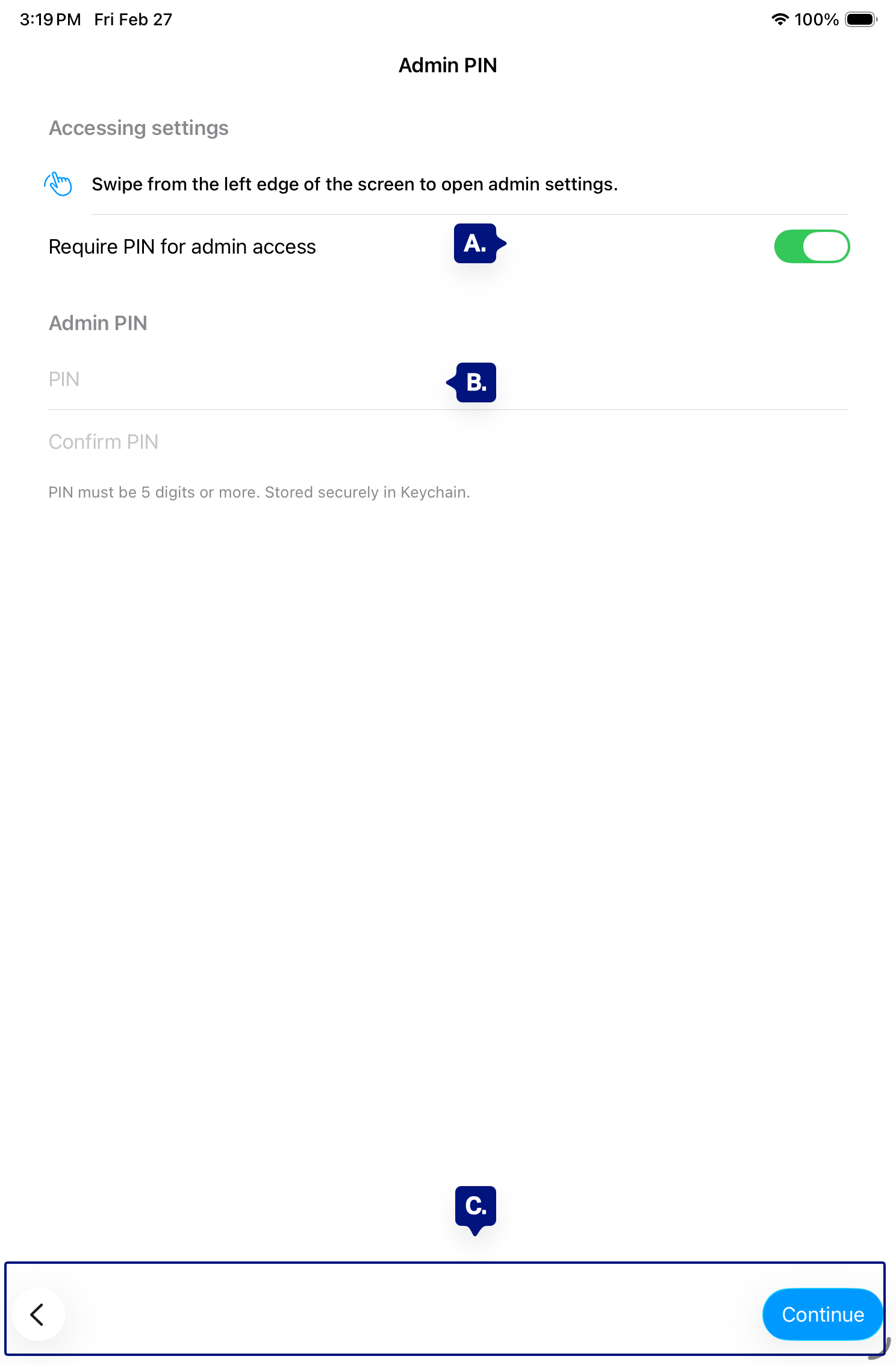
A. Require PIN for admin access (toggle – will auto save)
B. Set PIN / PIN fields (if shown)
C. Continue / Back.
Step 2: Turn on “Require PIN for admin access” #
Enable Require PIN for admin access so that when someone uses the admin gesture (e.g. swipe from edge), they must enter the PIN—or use Face ID / Touch ID if available—before seeing admin settings. Leave it off only if the device is already locked down (e.g. Guided Access) and you don’t need an extra layer.
[See A. Above]
Step 3: Set your PIN #
Set a PIN that’s at least 5 digits. The app may show a default (e.g. 12345); you can keep it for testing or change it to something only you know. You’ll use this PIN (or biometrics) whenever you open the admin panel.
[See B. Above]
Step 4: Continue to recommended setup #
Tap Continue to go to Recommended setup (Guided Access, HACS Kiosk Mode, etc.). After setup, you can change the PIN or turn off the requirement in Admin → Device → Manage PIN.
[See C. Above]
Unlocking the Admin panel later #
When Require PIN for admin access is on, you will Swipe to access Admin:
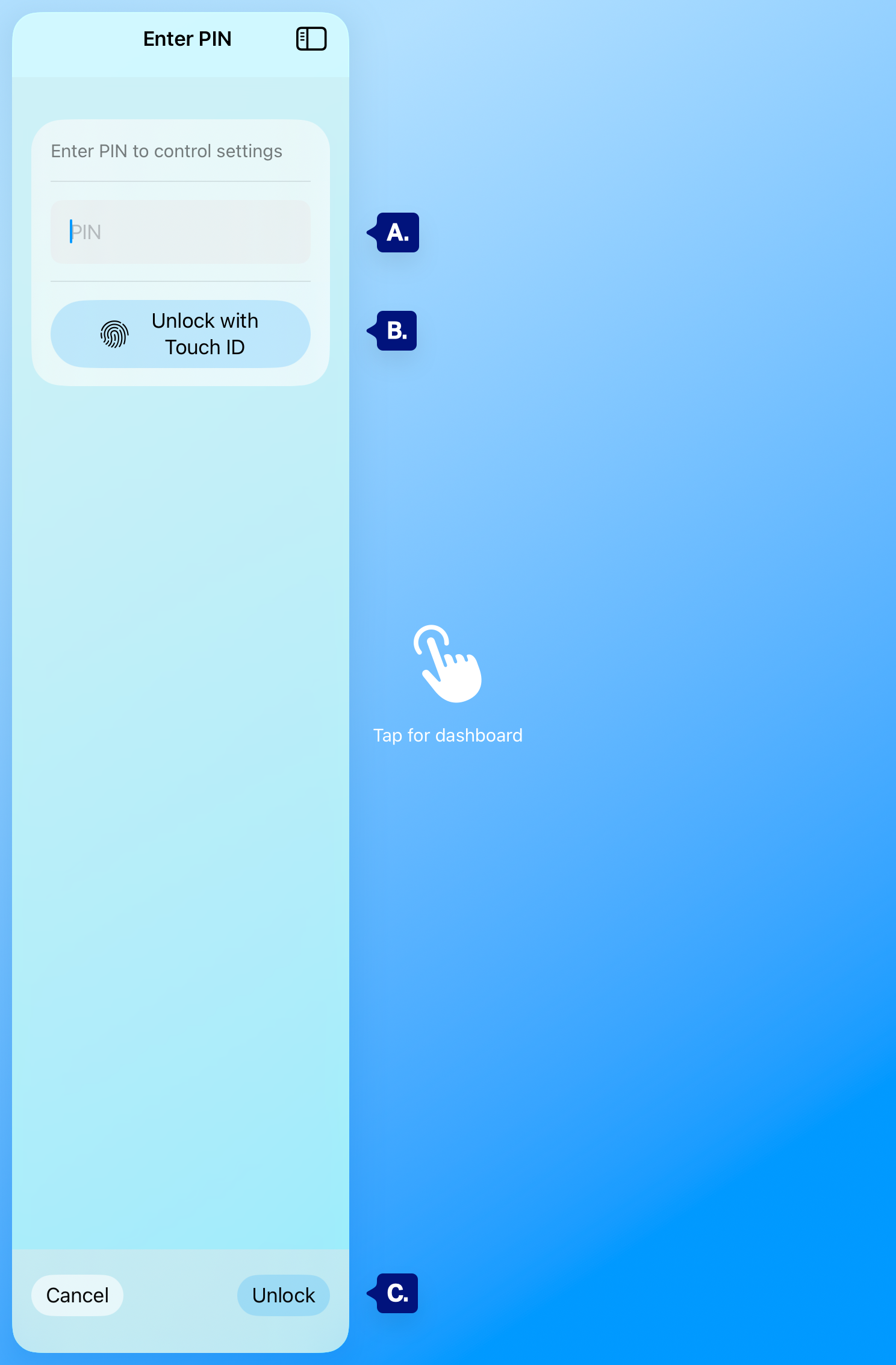
- PIN only — Enter the PIN and tap Unlock. After too many wrong attempts, the app may temporarily lock out further tries (e.g. “Try again in X seconds”). [See A. below]
- Face ID / Touch ID — If your device supports it, you’ll be prompted to use biometrics first. Tap Unlock with Face ID (or Touch ID) or enter the PIN if biometrics fail or are skipped. [See B. below]
Changing the PIN or requirement later #
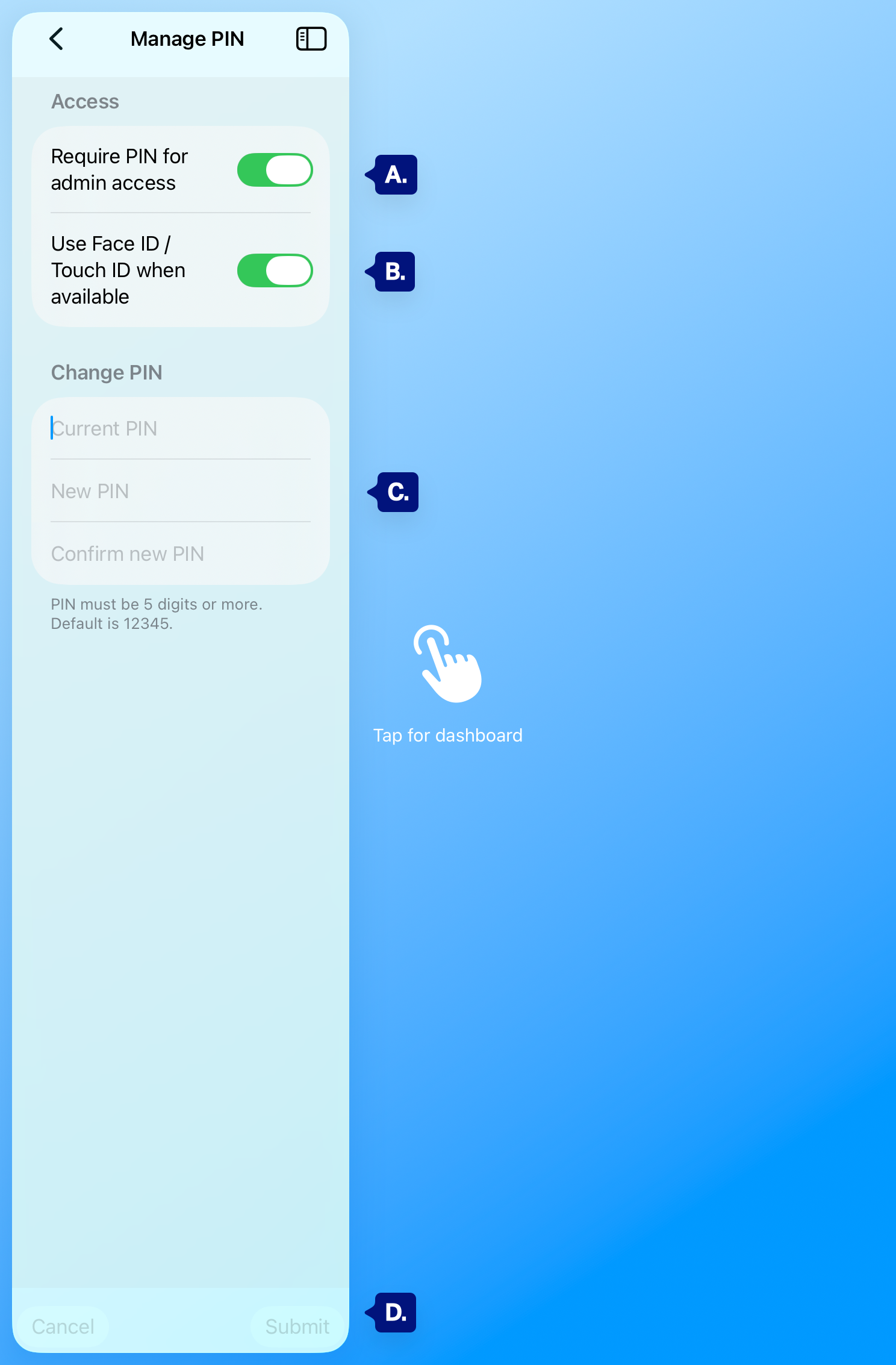
Swipe to access Admin → Device → Manage PIN. There you can:
- Turn Require PIN for admin access on or off. [See A. below]
- Toggle On/Off the ability for FaceId to unlock admin after swipe [See B. above]
- Change PIN — Enter current PIN, new PIN, confirm new PIN, then Submit. PIN must be 5 digits or more. [See C. below]
Troubleshooting #
- Forgot PIN — If you can’t open the Admin panel, you may need to sign out (if you can reach Sign out from the lock screen) or reinstall the app, which clears settings and starts onboarding again. Avoid forgetting the PIN by changing the default during setup.
- Locked out — Wait for the lockout period to end (e.g. “Try again in X seconds”). Use the correct PIN or biometrics when retrying.
- Face ID / Touch ID not offered — Ensure the device has biometrics set up in iOS Settings and that the app is allowed to use them. If not available, use the PIN.
Next step #
After Admin PIN setup, see Recommended setup and Guided Access for HACS Kiosk Mode, Guided Access, and “Always on” tips.