
To change dashboards, connection, Idle screen, or other options, you open the Admin panel. You swipe from the left edge of the screen (Swipe to Admin), then enter your Admin PIN or use Face ID / Touch ID if you turned on “Require PIN for admin access” during setup.
What you’ll need #
- The app running with your dashboard (or Idle screen) visible.
- Your Admin PIN if “Require PIN for admin access” is on (set in setup or Admin → Device → Manage PIN).
- Optional: Face ID or Touch ID set up in iOS so you can unlock without typing the PIN.
Step 1: Swipe from the left edge #
From the dashboard or Idle screen, swipe from the left edge of the screen toward the center. Use a clear drag (about a finger-width or more). The Admin panel will start to open or, if PIN is required, the unlock screen will appear first. (Swipe to Admin)
Step 2: Unlock with PIN or biometrics #
If Require PIN for admin access is on, you’ll see the Enter PIN screen (popup or side panel) before the full admin menu.
- PIN — Type your Admin PIN and tap Unlock. If you’re locked out after too many wrong attempts, wait for the countdown (e.g. “Try again in X seconds”) before trying again.
- Face ID / Touch ID — If your device supports it, tap Unlock with Face ID (or Touch ID) and complete the biometric prompt. The Admin panel then opens.
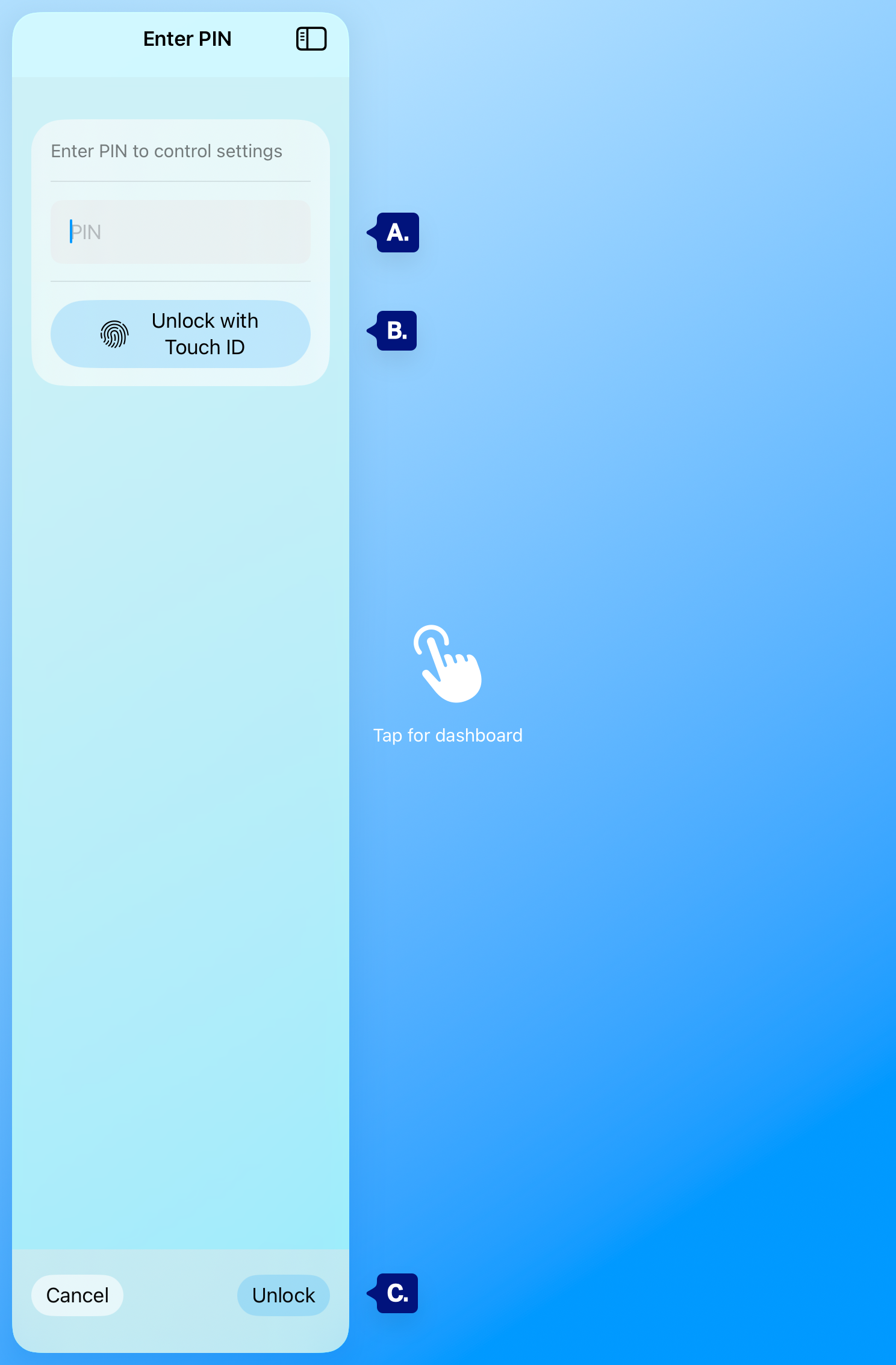
A. Pin Field
B. Unlock with Face ID / Touch ID (button)
C. Cancel / Unlock
Step 3: Use or close the Admin panel #
After unlocking, the Admin panel opens (sidebar with Dashboards, Connection, Idle screen, Device, Events, Account). Tap a section to open it, or tap the dashboard icon (or the main content area) to close the panel and return to the dashboard.
If you don’t require a PIN #
If Require PIN for admin access is off (e.g. you rely on Guided Access only), the Admin panel opens as soon as you complete the swipe from the left edge—no PIN or biometrics step.
Troubleshooting #
- Swipe doesn’t open admin — Swipe from the very left edge (not from the middle). Use a clear horizontal drag (about 25 pt or more). If you use Guided Access, confirm the gesture isn’t blocked by your Guided Access settings.
- PIN screen but no Face ID / Touch ID — Ensure Face ID or Touch ID is set up in Settings → Face ID & Passcode (or Touch ID) and that the app is allowed to use it. Otherwise use the PIN.
- Locked out — Wait for the lockout time (e.g. “Try again in X seconds”). Then enter the correct PIN or use biometrics. If you forgot the PIN, see Admin PIN and security or Manage PIN for options (e.g. sign out and re-onboard if necessary).
- Panel opens then closes — Make sure you’re not tapping the main (right) area before you mean to; tapping there closes the panel.
Next step #
For an overview of all sections, see Admin panel overview. To change your PIN or the “Require PIN” setting, see Manage PIN (require PIN, change PIN).