
After you choose your dashboard, you set up the Idle screen: the screen that appears after the device is untouched for a while. You choose how long before it appears, how it looks (gradient or image, logo/icon, text), and optional Pro features like Fade to black.
What you’ll need #
- Completed dashboard step (path and display name set).
- Optional: a background image or logo image if you want a custom look (Pro for some options). Default is a gradient with a “Tap for dashboard” prompt.
Step 1: Open the Idle screen step #
When you tap Continue on the dashboard step, the Idle screen (or “Screensaver”) setup step appears. You’ll see timeout, background, and prompt options.
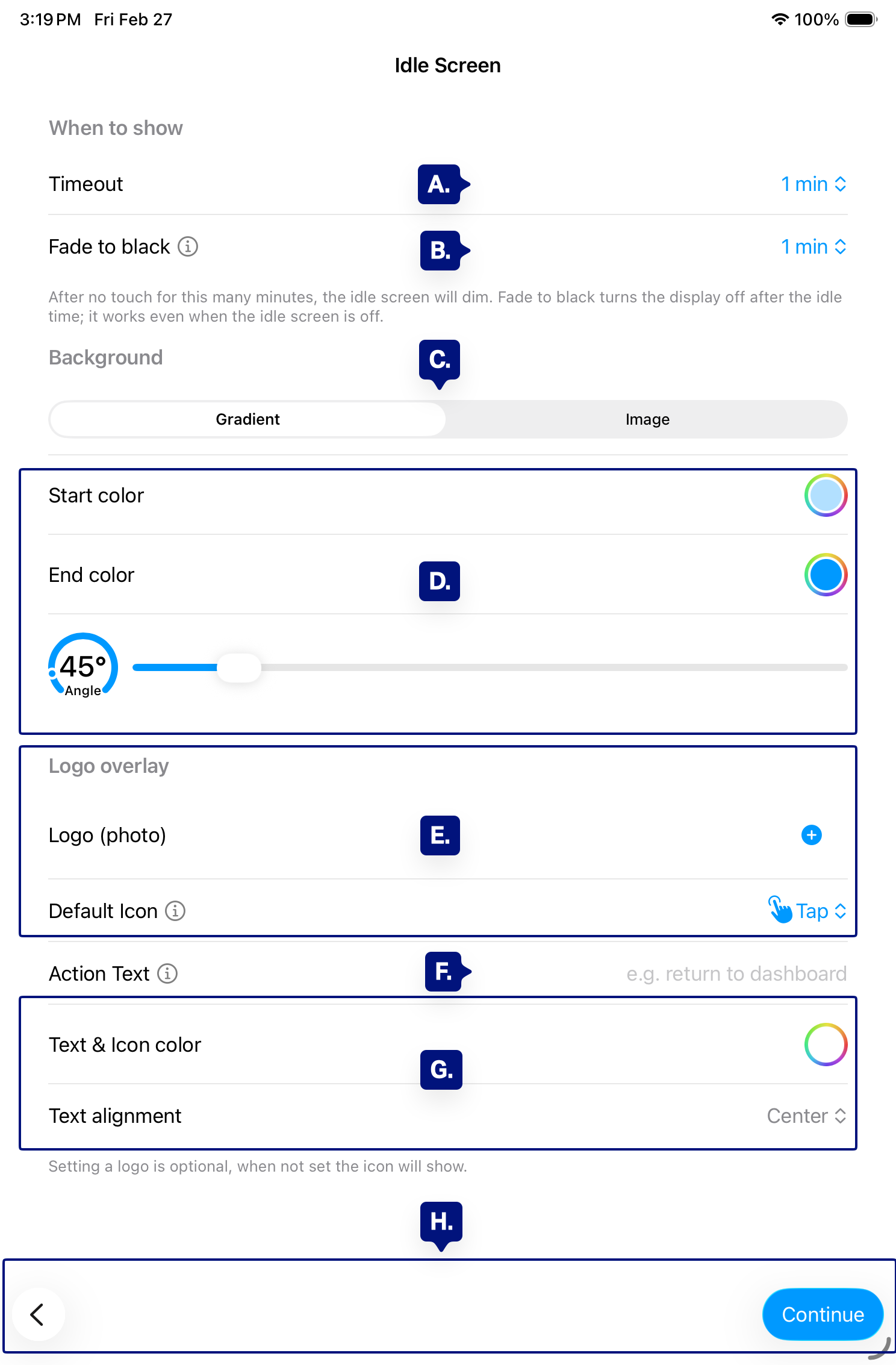
A. Timeout
B. Fade to black (Pro)
C. Background (Gradient / Image)
D. Start color / End color / Angle
E. Logo (photo) or Icon
F. Action text
G. Text & icon color / alignment
H. Continue / Back.
Step 2: Set the timeout #
Timeout is how many minutes of no touch before the Idle screen appears. Choose Off, 1 min, 5 min, 10 min, 15 min, 20 min, 30 min, or 60 min. For a wall display that should dim when idle, 5–10 minutes is common.
[See A. above]
Step 3: Set Fade to black (Pro) #
Fade to black (Pro) turns the screen black after extra idle time to save power. Set it to Off or a duration (e.g. 1–60 min) after the Idle screen has been showing. Tap anywhere to wake. If you don’t have Pro, this option is unavailable.
[See B. above]
Step 4: Choose the background #
First choose your options [See C. above]
- Gradient — Two colors and an angle. Use Start color and End color (tap to pick), and Angle (e.g. 45°) for direction.
- Image (Pro) — Your own background image. Tap Logo (photo) or the background image area to add one.
[see D. above]
Step 5: Set logo or default icon #
- Default icon — Preset icon (e.g. house, tap, room) shown on the Idle screen. Pick one from the list (e.g. Tap).
- Logo (photo) (Pro) — Your own image (logo or graphic) instead of the default icon. You can set position and size later in Admin.
[See E. above]
Step 6: Set the action text and colors #
- Action text — The line under the icon (e.g. “Tap for dashboard”). Leave blank to use the default “Tap for dashboard.”[See F. above]
- Text & icon color — Color for that text and the icon.
- Text alignment — Left, Center, or Right for the prompt. [See G. above]
Step 7: Continue to admin PIN #
Tap Continue to go to Admin PIN and security. You can change all Idle screen settings later in Admin → Idle screen (including Return to primary, periodic refresh, and more Pro options).
[See H. above]
Troubleshooting #
- Idle screen never appears — Confirm Timeout is not Off. Ensure the device isn’t sleeping (see Admin → Device → Keep screen on and system Display settings).
- Want a custom background or logo — Custom background image and logo are Pro. Upgrade or use Gradient and Default icon on the free tier.
- “Tap for dashboard” too small or wrong color — Adjust Text & icon color and Text alignment here or in Admin → Idle screen.
Next step #
After Idle screen setup, see Admin PIN and security to require a PIN (or biometrics) for opening the Admin panel.