After you enter your Home Assistant URL, the app needs to authenticate with your Home Assistant instance. This step is Sign In: you provide a long-lived access token so the app can load your dashboards without logging in each time.
What you’ll need #
- Your Home Assistant instance URL already entered on the previous (connection) step.
- A Long-lived access token from Home Assistant. You create it in your HA profile and then paste it or scan a QR code in the app.
Step 1: Open the Sign In step #
When you tap Continue on the connection step, the Sign In screen appears. You’ll see a section for the long-lived access token below.
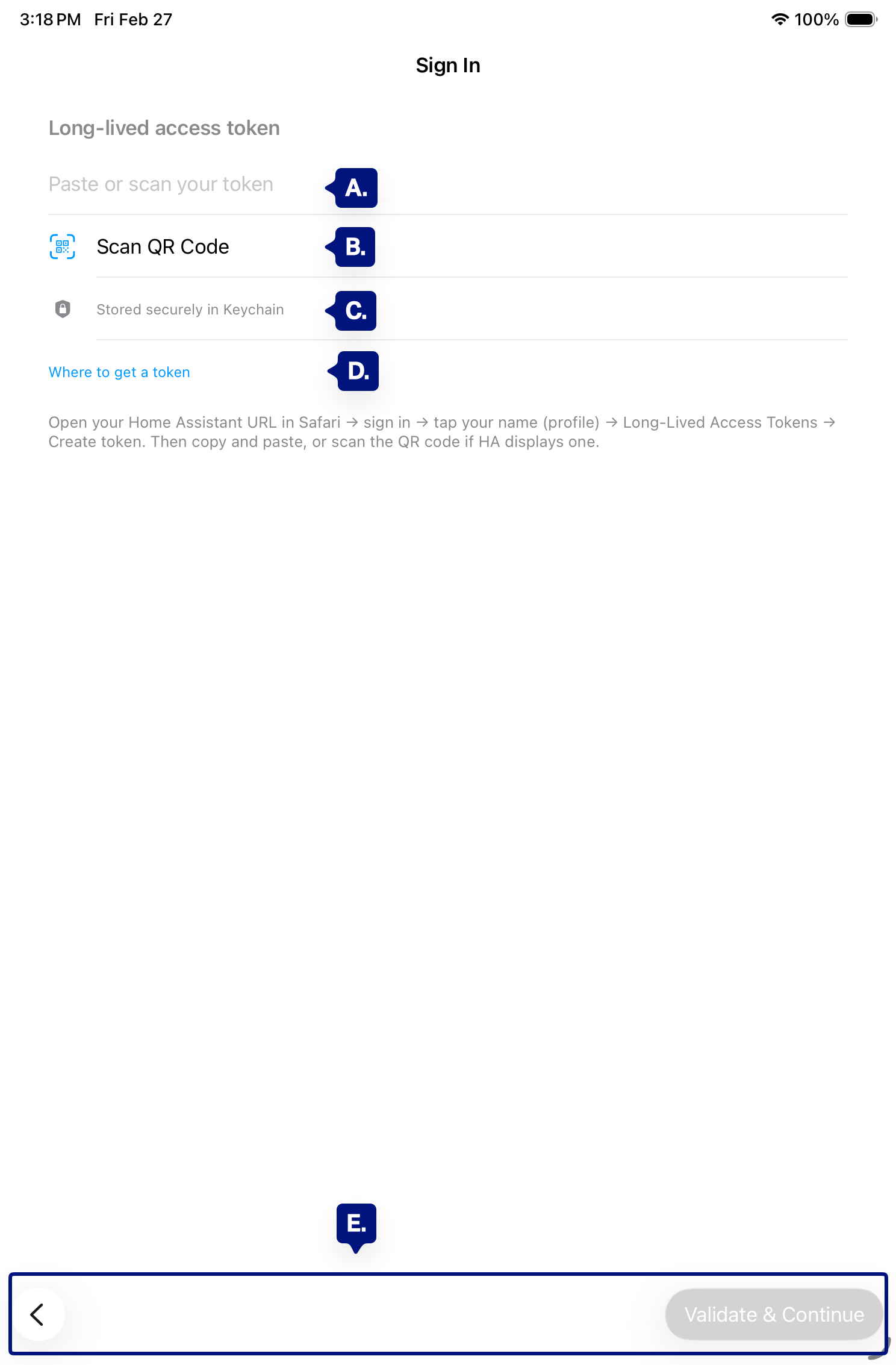
A. Long-lived access token field
B. Scan QR Code
C.Stored securely in Keychain
D. Where to get a token |
E. Admin Navigation Clear / Validate & Continue.
Step 2: Get a long-lived access token from Home Assistant #
If you don’t have a token yet:
- Open your Home Assistant URL in Safari (or your browser) and sign in.
- Tap your profile name (or avatar) to open your profile.
- Under Long-Lived Access Tokens, tap Create token.
- Name it (e.g. “Kiosk app”) and create it.
- Copy the token, or use the QR code if Home Assistant shows one.
[See D. Above]
Step 3: Enter the token in the app #
- Paste: Tap the “Paste or scan your token” field and paste the token you copied. [See A. Above]
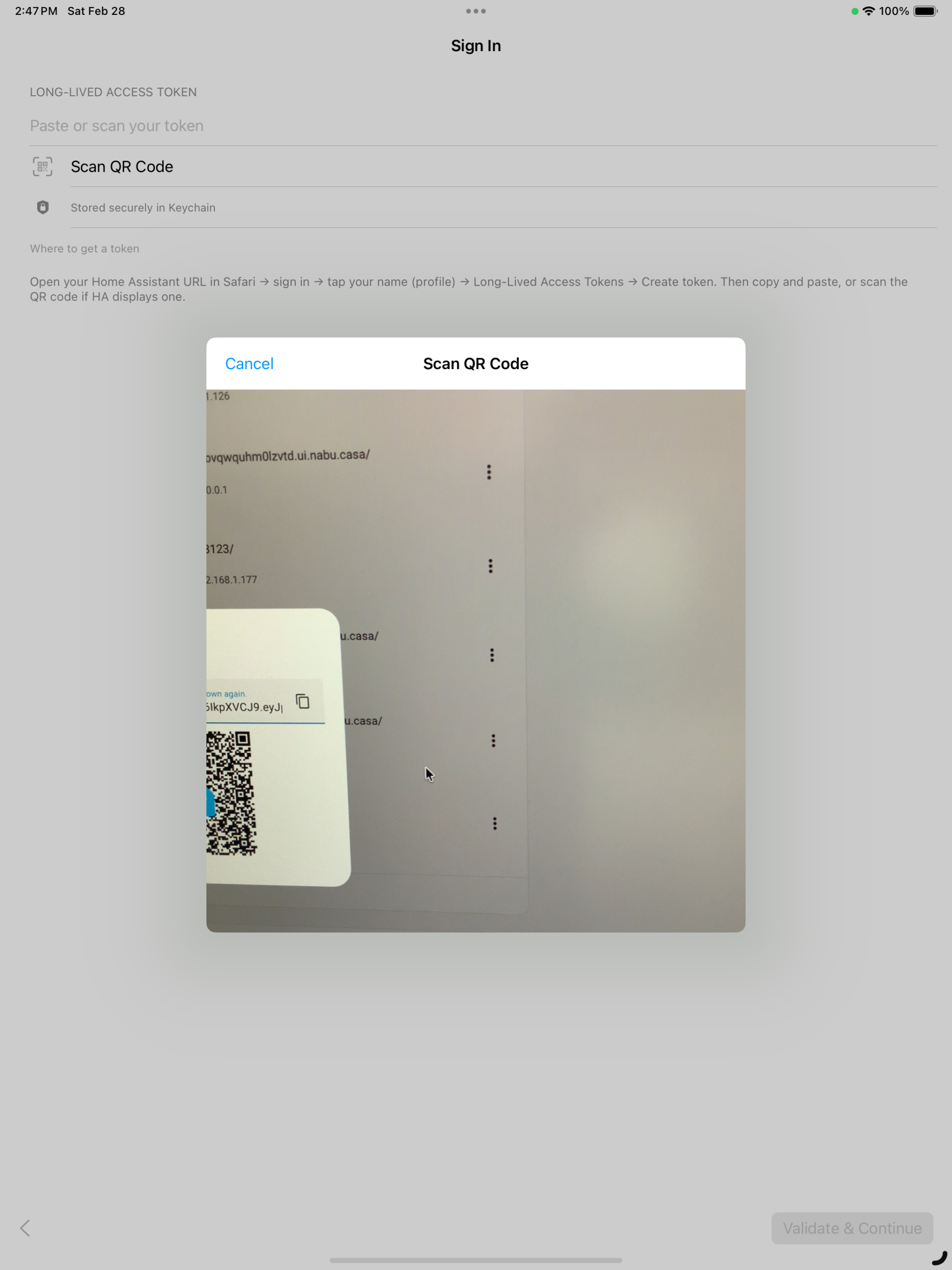
- Scan: Tap Scan QR Code and scan the QR code shown in Home Assistant when you create the token. [See B. Above]
The app stores the token securely in the device Keychain. You won’t need to enter it again unless you sign out or re-authenticate. [See C. Above]
Step 4: Submit and continue #
Tap Submit. The app validates the token with your Home Assistant instance. If it’s valid, you’ll move to the next step: Choosing your dashboard.
[See E. Above]
Troubleshooting #
- Submit does nothing or “Invalid token” — Check that you copied the full token with no extra spaces. Create a new token in Home Assistant and try again.
- “Unable to connect” or timeout — Confirm the device can reach your Home Assistant URL (same network or remote access). Test the URL in Safari first.
- QR code not working — Ensure the whole QR code is in frame and well lit. If it still fails, copy the token and paste it instead.
- Using Nabu Casa — Use the same Nabu Casa URL on the connection step and sign in with a token created while logged in via that URL.
Next step #
After signing in, see Choosing your dashboard to set your dashboard path and display name.