
In the Admin panel → Account you get to help, tools, and account actions: How-to & information, Transfer settings, Debug, Pro Features, and Sign out. This article explains each option and when to use it.
What you’ll need #
- Admin panel open (swipe from left edge, then PIN or biometrics if required).
- For Transfer settings: the device you want to export from or the QR code / payload you want to import on another device (Pro for full transfer).
- For Pro Features: your Apple ID / subscription if you want to manage or restore Pro.
Opening the Account section #
In the admin sidebar, tap Account. The section expands and shows How-to & information, Transfer settings, Debug, Pro Features, and Sign out at the bottom.
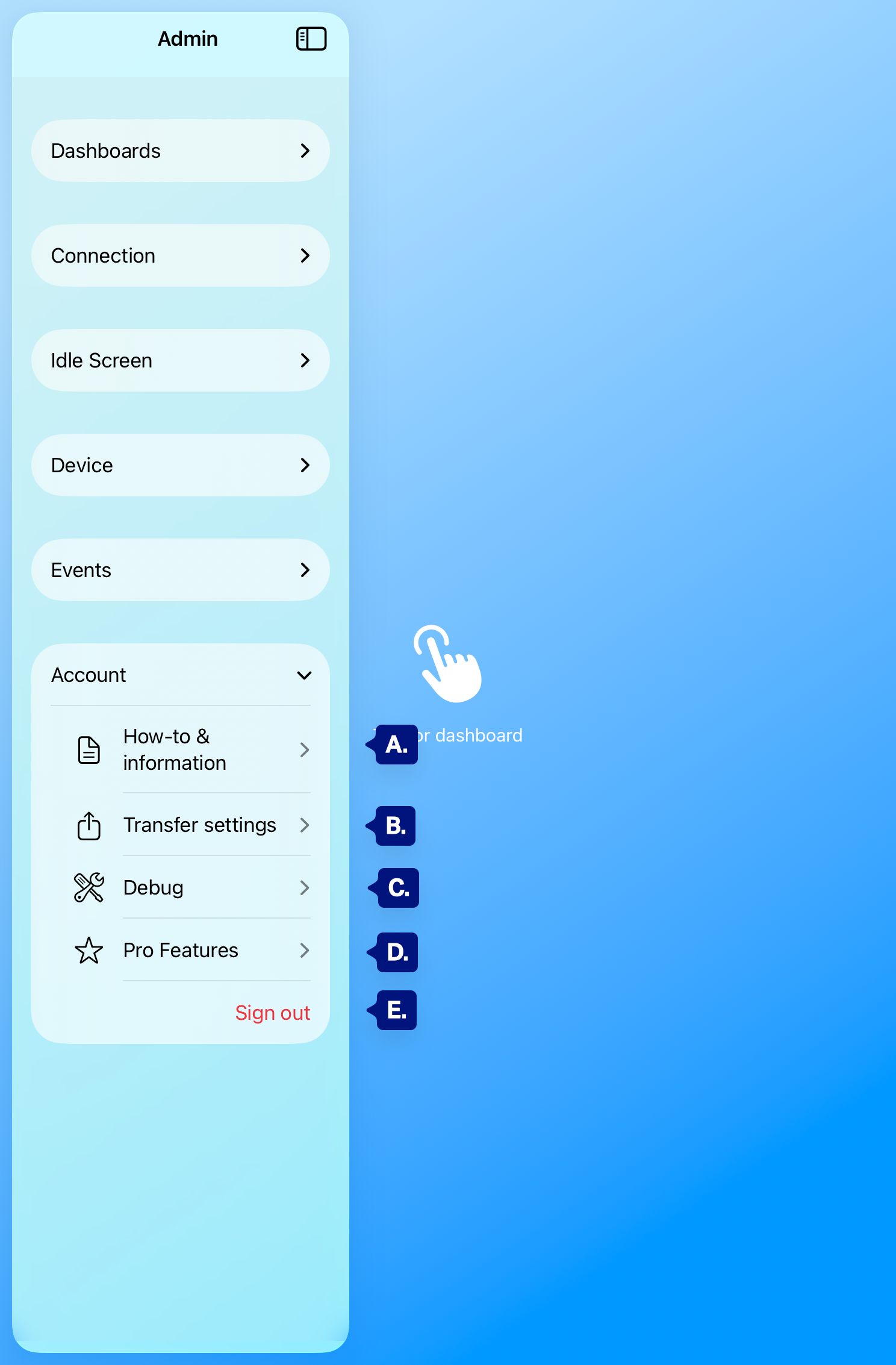
A. How-to & information
B. Transfer settings
C. Debug
D. Pro Features
E. Sign out.
How-to & information #
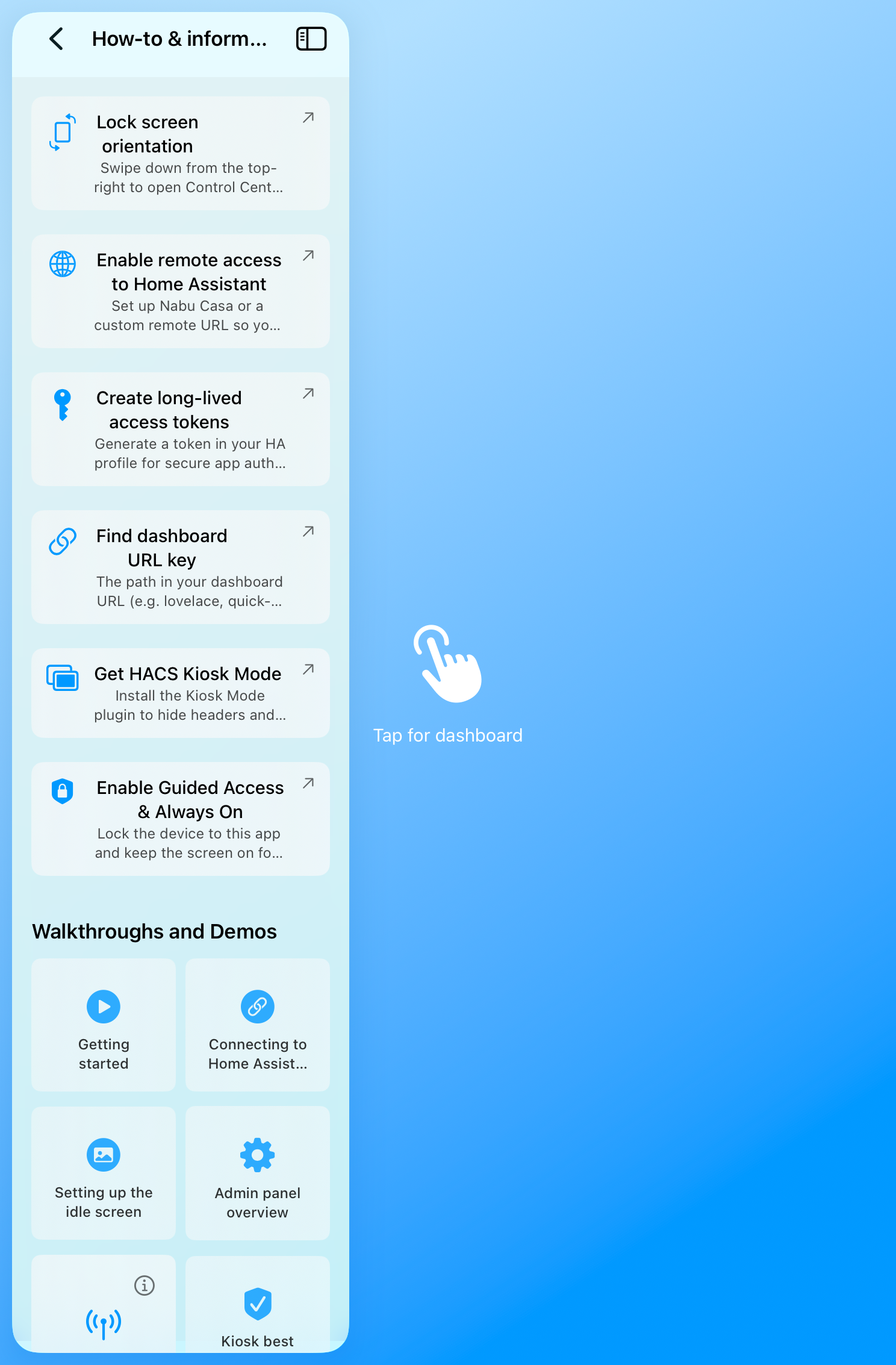
Tap How-to & information to open in-app guides and links, for example:
- Lock screen orientation (Control Center).
- Enable remote access to Home Assistant (Nabu Casa or custom URL).
- Create long-lived access tokens.
- Find dashboard URL key (path).
- Get HACS Kiosk Mode (or similar).
- Enable Guided Access & Always On.
[see Admin panel A. above]
Transfer settings #
Tap Transfer settings to move configuration between devices:
- Export — The app shows a QR code (and/or payload). Scan it on another device with the app to copy settings (dashboards, URLs, Idle screen options, etc.). Tokens and PINs are not included for security; you’ll sign in again on the new device.
- Import — Scan a QR code (or paste a payload) from another device’s Export to apply its settings on this device.
[see Admin panel B. above]

A. Export / Import (tabs)
B. QR code (export) & Scan this QR code… (import)
Tokens and PINs are not included
Debug #
Tap Debug to open the troubleshooting screen. It shows JSON (or similar) with app and profile info (e.g. base URL, Dashboard path, subscription status, Append ?kiosk, build/version). Use Copy (e.g. clipboard icon) to copy the text and share it when asking for support. The data helps diagnose connection, auth, and subscription issues.
[see Admin panel C. above]

A. JSON or diagnostic content
B. Copy (button/icon).
Note: no sensitive information is presented in this JSON
Pro Features #
Tap Pro Features to see your Pro status and what’s included (e.g. multiple dashboards with tab bar, Fade to black & return to primary, custom background & logo, periodic refresh, link policies, import/export settings, App Intents, dashboard zoom, HA events). If you’re subscribed, you’ll see You’re subscribed to Pro and a Manage subscription button (opens Apple subscription management). If not, you can upgrade from this screen.
[see Admin panel D. above]
Sign out #
Sign out is at the bottom of the Account section, often in red. Tapping it clears all app settings and returns you to onboarding (connection, sign-in, dashboard, Idle screen, admin PIN, etc.). You’ll need to reconnect to Home Assistant and set up again. Use it when handing the device to someone else, switching HA instances, or doing a full reset. The app may ask for confirmation before signing out.
[See Admin panel E. above]
Troubleshooting #
- Transfer: “Tokens and PINs are not included” — By design. On the new device, complete sign-in with a Long-lived access token and set the Admin PIN again.
- Debug copy doesn’t paste — Ensure you tapped Copy and that the target app allows paste. Try pasting into Notes or email first.
- Pro not showing as active — Tap Manage subscription and check in Apple Settings → [Your name] → Subscriptions. Use Restore purchases in the app if available.