
In the Admin panel → Connection you see the Home Assistant URL the app uses and two actions: Re-authenticate (sign in again after a password or URL change) and Clear cache (reload dashboard content and fix some display issues).
What you’ll need #
- Admin panel open (swipe from left edge, then PIN or biometrics if required).
- To re-authenticate: your new Long-lived access token or willingness to sign in again in the re-auth flow.
Opening the Connection section #
In the admin sidebar, tap Connection. The section expands and shows Remote address, Re-authenticate, and Clear cache.
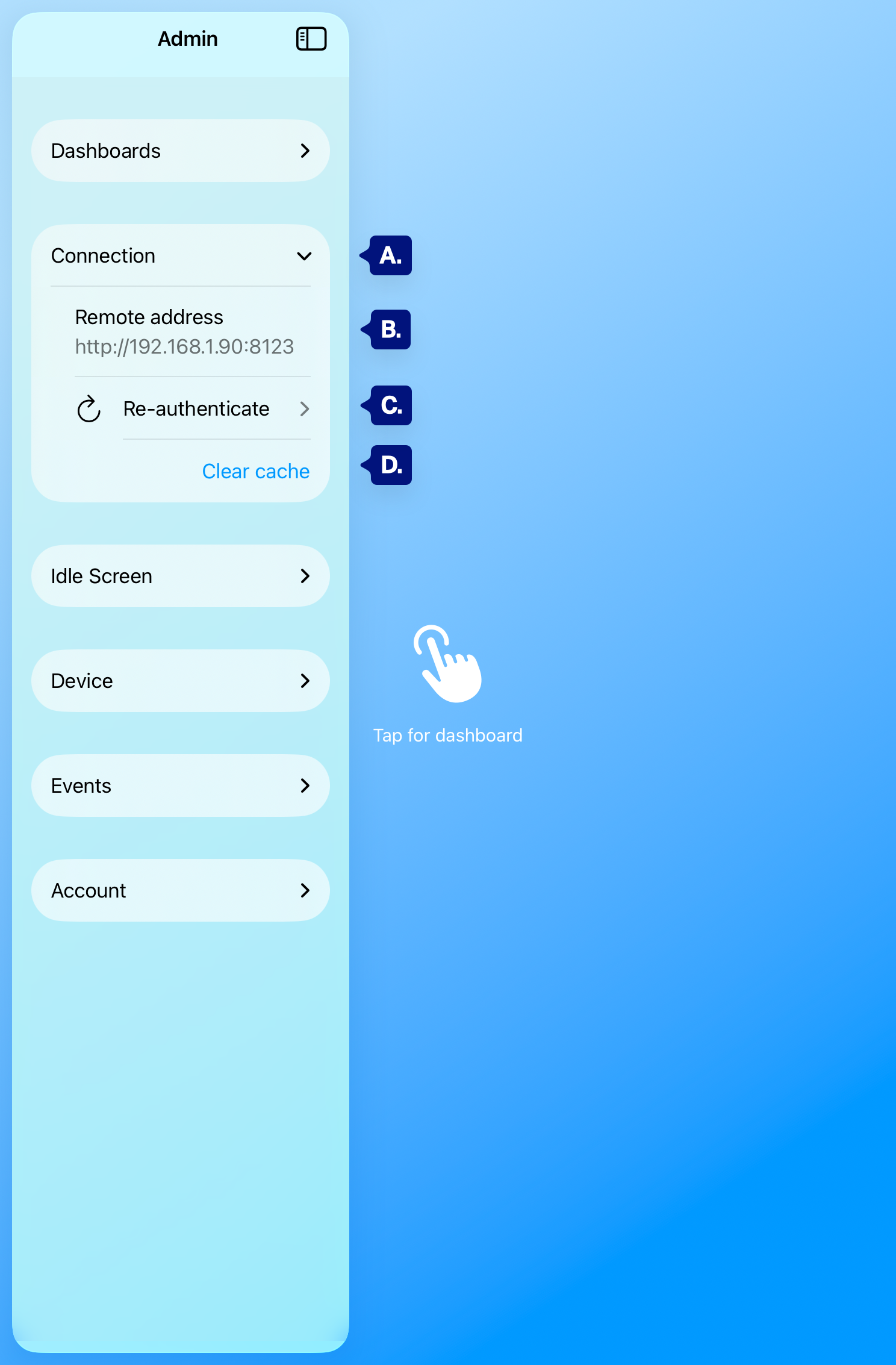
A. Connection (section)
B. Remote address
C. Re-authenticate
D. Clear cache.
Remote address #
Remote address is the Home Assistant URL the app uses for this profile (e.g. http://192.168.1.90:8123 or your Nabu Casa URL). It’s read-only here. You set it during onboarding; to use a different URL, Re-authenticate and enter the new URL and credentials in the re-auth flow (the app may show a connection step where you can change the URL and sign in again). [See B above]
Re-authenticate #
Tap Re-authenticate when:
- You changed your Home Assistant password.
- You switched to a new Home Assistant URL (e.g. new Nabu Casa URL or new local IP).
- The app shows “Authentication error” or “Use admin panel to reauthenticate.”
- Your Long-lived access token was revoked or expired.
The app opens the sign-in flow again. Enter or confirm the base URL, then paste a new Long-lived access token or complete in-app sign-in. After success, the app saves the new credentials and reloads the dashboard.
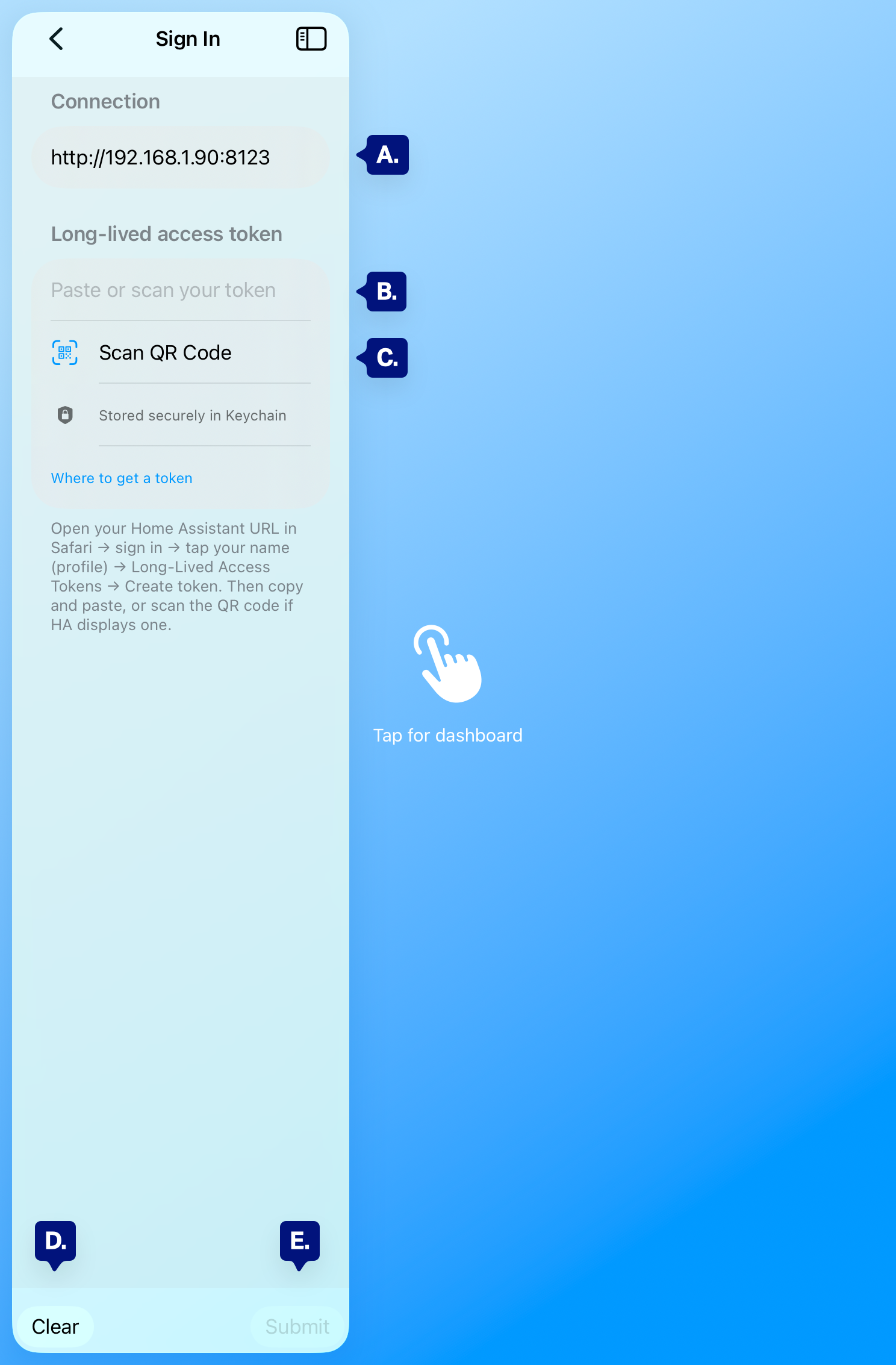
A. Connection URL (or “Remote address”)
B. Long-lived access token field or sign-in
C. Scan QR code from Home Assistant for Long-Live access token.
D. Clear button to start over
E. Submit once required fields are entered
Clear cache #
Tap Clear cache to clear the app’s cached dashboard content and force a fresh load. Use it when:
- The dashboard shows old or wrong content.
- A dashboard change in Home Assistant doesn’t appear.
- You see odd layout or loading issues.
The button may briefly show “Cleared” after tap. The dashboard reloads automatically. Tokens and settings are not cleared; only the WebView cache is cleared.
[See D. above]
Troubleshooting #
- Re-authenticate doesn’t fix “Authentication error” — Confirm the Home Assistant URL is correct and that the new Long-lived access token was created in Home Assistant while logged in to that same URL. Test the URL in a browser first.
- Can’t change Remote address — Use Re-authenticate and go through the flow; if the app shows a connection step, enter the new URL there, then sign in.
- Clear cache didn’t help — Try Re-authenticate if you suspect auth or URL issues. For persistent display problems, see Debug (troubleshooting info) and consider sharing that info with support.
Next steps #
- Signing in (long-lived access token) — How to get and enter a token (same as in re-auth).
- Events (send kiosk events to HA) — Enable sending events to Home Assistant 1.
- Debug — Copy troubleshooting info for support.