
In the Admin panel → Dashboards you control which Home Assistant dashboards the app shows, the primary one, kiosk mode (Append ?kiosk), and (with Pro) the tab bar, zoom, and link navigation. This article walks through each option.
What you’ll need #
- Admin panel open (swipe from left edge, then PIN or biometrics if required).
- For multiple dashboards and tab bar: an active Pro subscription.
Opening the Dashboards section #
In the admin sidebar, tap Dashboards. The section expands and shows Manage dashboards, Primary dashboard, Append ?kiosk (HACS Kiosk Mode), and (if applicable) Link navigation, Tab bar, and Dashboard zoom.
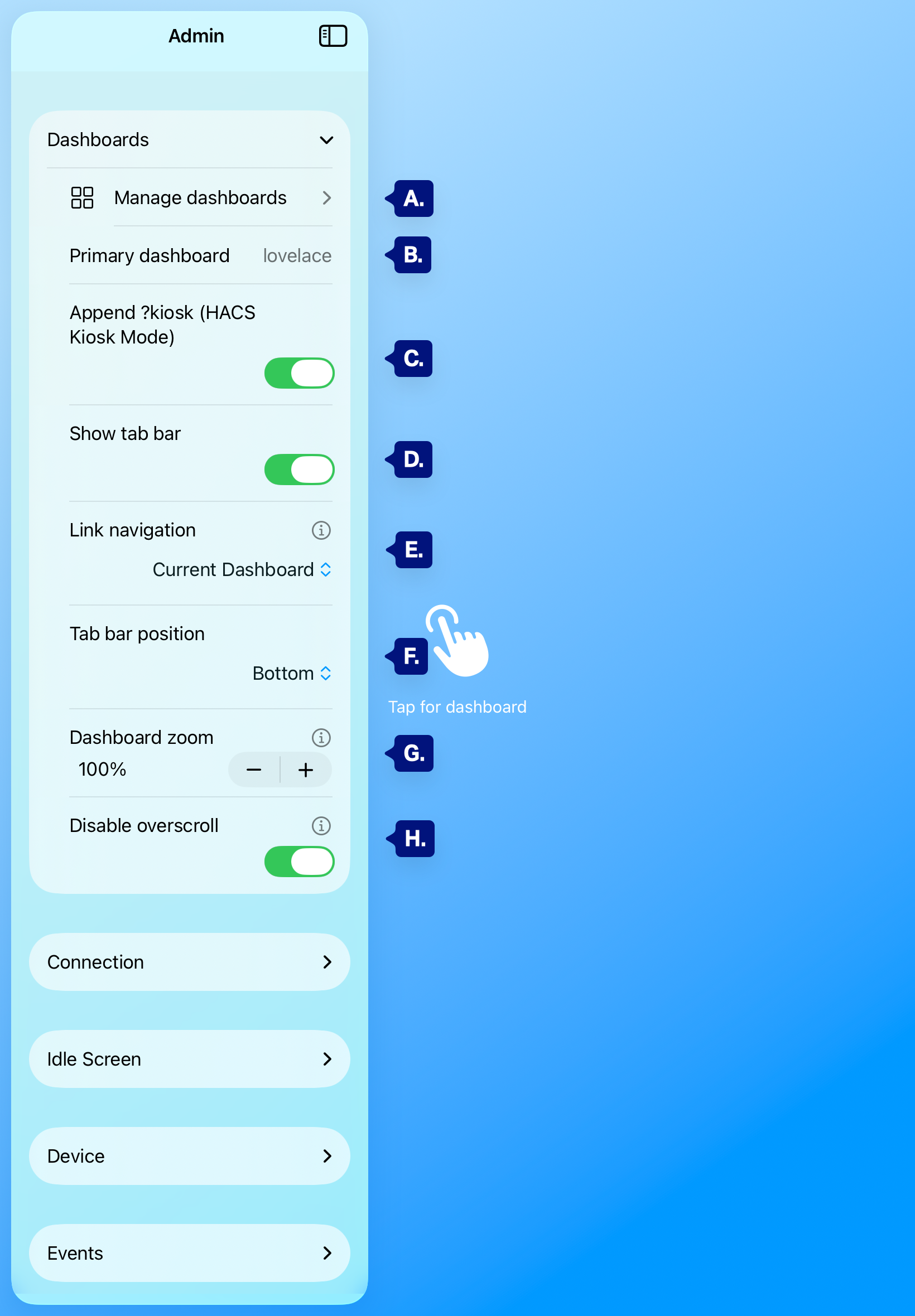
A. Manage dashboards
B. Primary dashboard
C. Append ?kiosk (HACS Kiosk Mode)
D. Show tab bar (Pro)
E. Link navigation
F. Tab bar position (Pro)
G. Dashboard zoom
H. Disable Overscroll
Manage dashboards #
Tap Manage dashboards to add, edit, or remove dashboards. You can set a primary dashboard and, for each one, set path, display name, Set as primary, and tab icon. With Pro and more than one dashboard, you can show a tab bar to switch between them.
[See A. above]
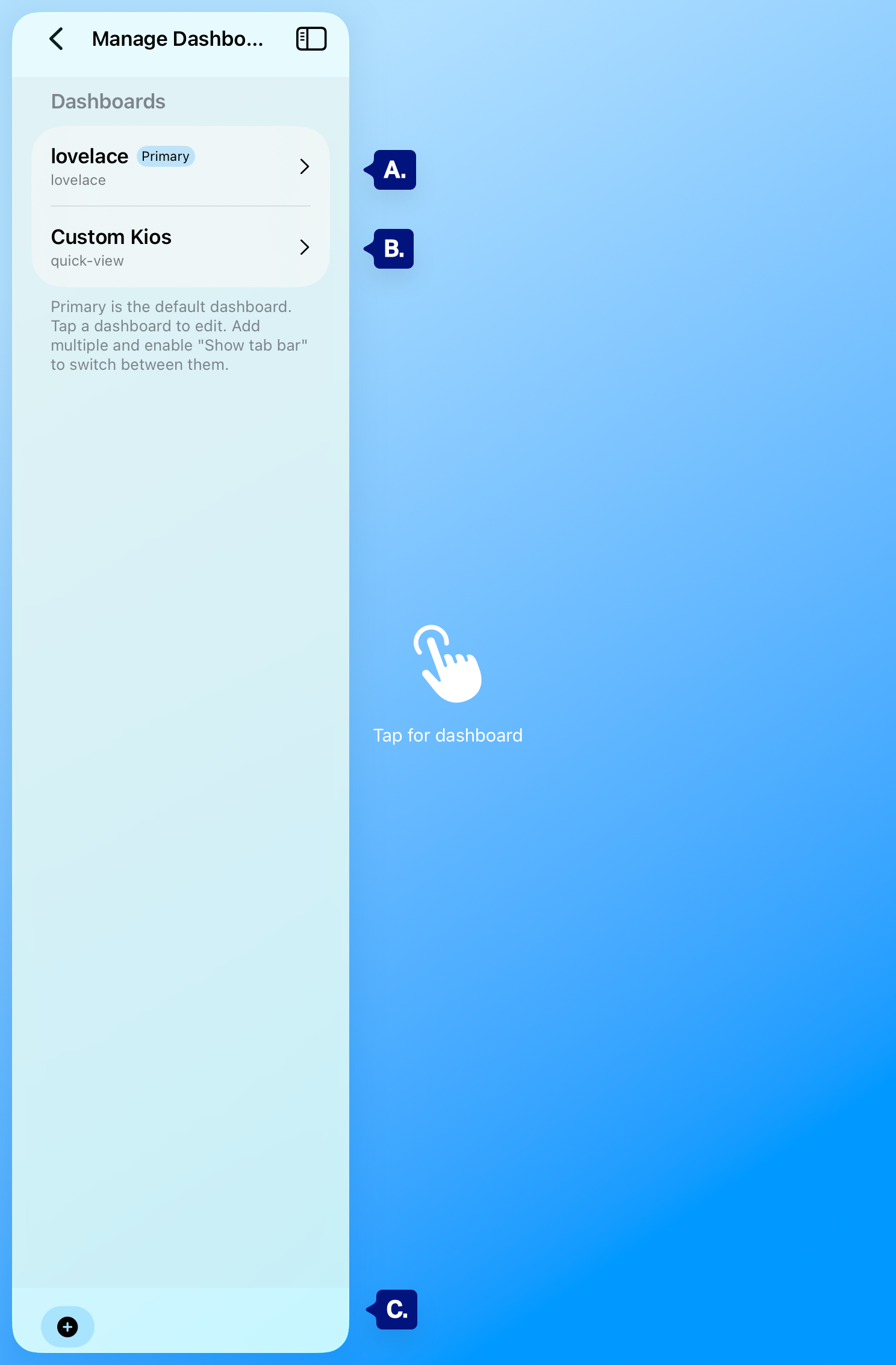
Manage Multiple Dashboards #
A. Primary indicator on the first dashboard
B. Example of a second dashboard
C. (+) Add a new Deashboard
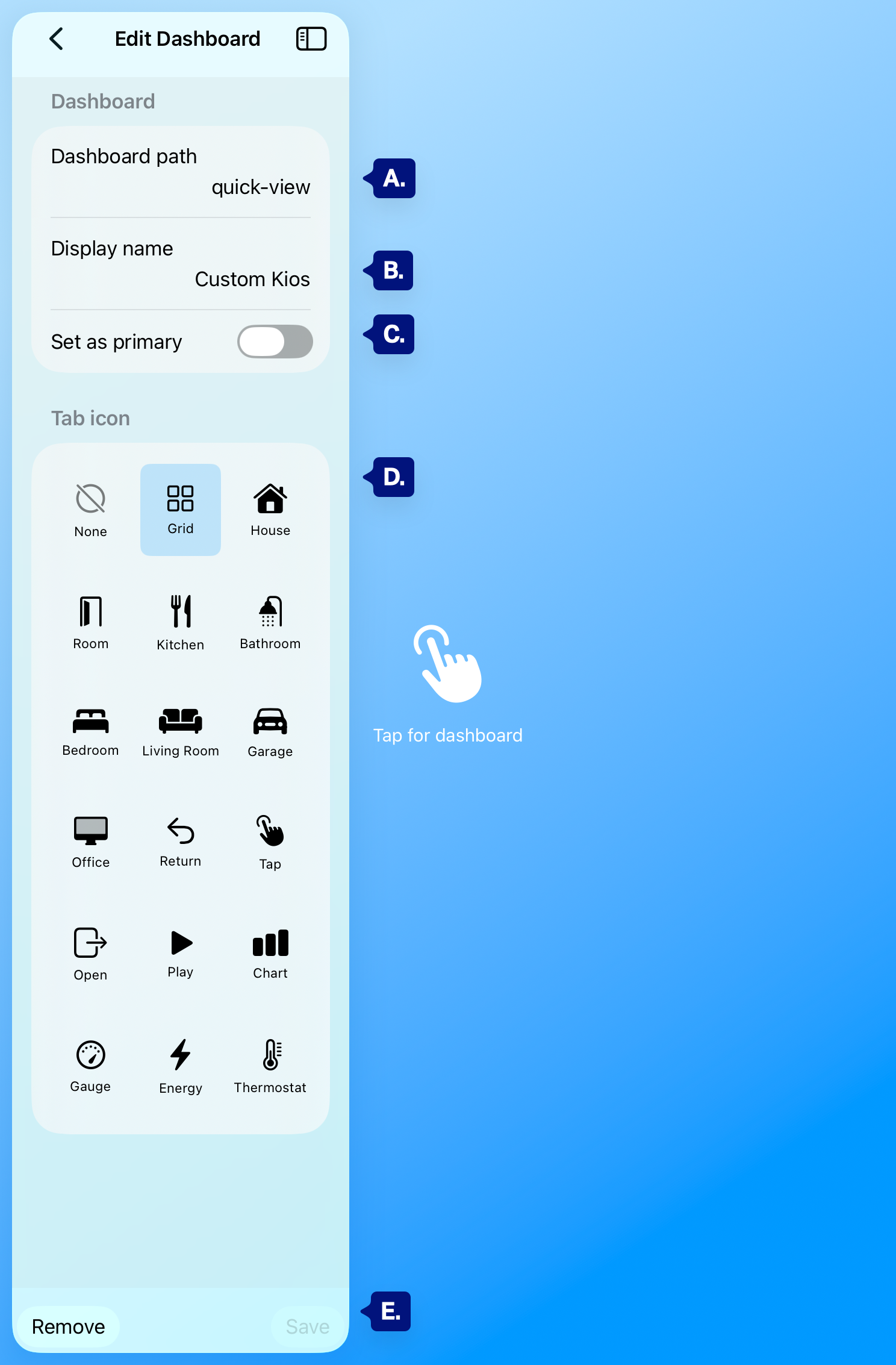
Single Dashboard Options #
A. Dashboard path: Enter the Home Assistant Dashboard path (for example lovelace or quick-view) or paste a full dashboard URL and the app will use the path.
B. Display name: Set a friendly name shown in the app (especially useful in tab navigation when you have multiple dashboards).
C. Set as primary: Turn this on to make this dashboard the default one the app opens and the one used for “Return to primary” behavior.
D. Tab icon (selection): Choose the icon used for this dashboard in the tab bar (visible when tab navigation is enabled with Pro and multiple dashboards).
E. Remove / Save: Tap Remove to delete this dashboard from your list, or tap Save to keep your changes.
Primary dashboard is the one used when the app starts or when “Return to primary on wake” is on (Pro) and you leave the Idle screen.
Primary dashboard #
Under Dashboards, Primary dashboard shows the path of the current primary (e.g. lovelace). To change it, open Manage dashboards, edit a dashboard, and turn Set as primary on for the one you want. Only one dashboard can be primary.
[See Dashboard panel B. above]
Append ?kiosk (HACS Kiosk Mode) #
When Append ?kiosk (HACS Kiosk Mode) is on, the app adds ?kiosk to the dashboard URL so your frontend (e.g. HACS Kiosk Mode or kiosk-mode) can hide headers and navigation. Turn it off only if you don’t use a kiosk-style frontend or want the normal HA UI.
[See Dashboard panel C. above]
Show tab bar and tab bar position (Pro) #
With Pro and two or more dashboards, Show tab bar appears. Turn it on to show a tab bar (icons and names) so you can switch dashboards without opening admin. Tab bar position lets you put the bar at Top, Bottom, Left, or Right.
[See Dashboard panel D. above]
[See Dashboard panel F. above]
Link navigation (Pro) #
Pro only: Link navigation controls what happens when someone taps a link inside the dashboard.
- Current Dashboard — Only links that stay within the current dashboard’s path.
- Connection — Any path on your configured Home Assistant URL host.
- All — Any link; external sites open in Safari (your token can be sent to those pages—use only for trusted setups).
- None — Block all link navigation.
[See Dashboard panel E. above]
Dashboard zoom (Pro) #
Pro only: Dashboard zoom sets the scale of the dashboard content between 10% and 200% (steps of 10%). It applies to all dashboards. Use the − and + controls or the value display to change it.
[See Dashboard panel G. above]
Disable Overscroll #
- When Disable Overscroll is ON: The dashboard WebView does not bounce/Overscroll when you reach the edges of the content.
- Sliders and controls behave more consistently, especially when the dashboard content does not fill the full screen height/width.
- When Disable Overscroll is OFF: The WebView behaves more like a standard scroll view with bounce/Overscroll enabled.
- This can reintroduce unwanted movement on sliders and interactive elements when content fits on screen.
[See Dashboard panel H. above]
Troubleshooting #
- Only one dashboard / no tab bar — Tab bar needs Pro and at least two dashboards. Add another in Manage dashboards and turn Show tab bar on.
- Header or nav still visible — Ensure Append ?kiosk (HACS Kiosk Mode) is on and a kiosk-mode solution (e.g. HACS Kiosk Mode) is installed and active for that dashboard in Home Assistant.
- Links open wrong or blocked — Check Link navigation (Pro). Use Current Dashboard or Connection for tighter control; All only for trusted dashboards.
Next steps #
- Connection — Re-authenticate, clear cache.
- Idle screen settings — Timeout, Fade to black, background.
- Events — Send kiosk events to HA (Pro).