
The Debug screen shows technical details about your app and connection (e.g. profiles, URLs, subscription, build). Use it when something isn’t working and you need to copy and share that info with support or when diagnosing connection, auth, or subscription issues yourself.
What you’ll need #
- Admin panel open → Account → Debug.
- No extra setup; the screen is read-only and uses your current app state.
Opening the Debug screen #
In the admin sidebar, tap Account, then Debug. The Debug screen opens with a short note (e.g. “Troubleshooting info – copy and share when asking for support”) and a block of diagnostic content (often JSON) plus a Copy control.
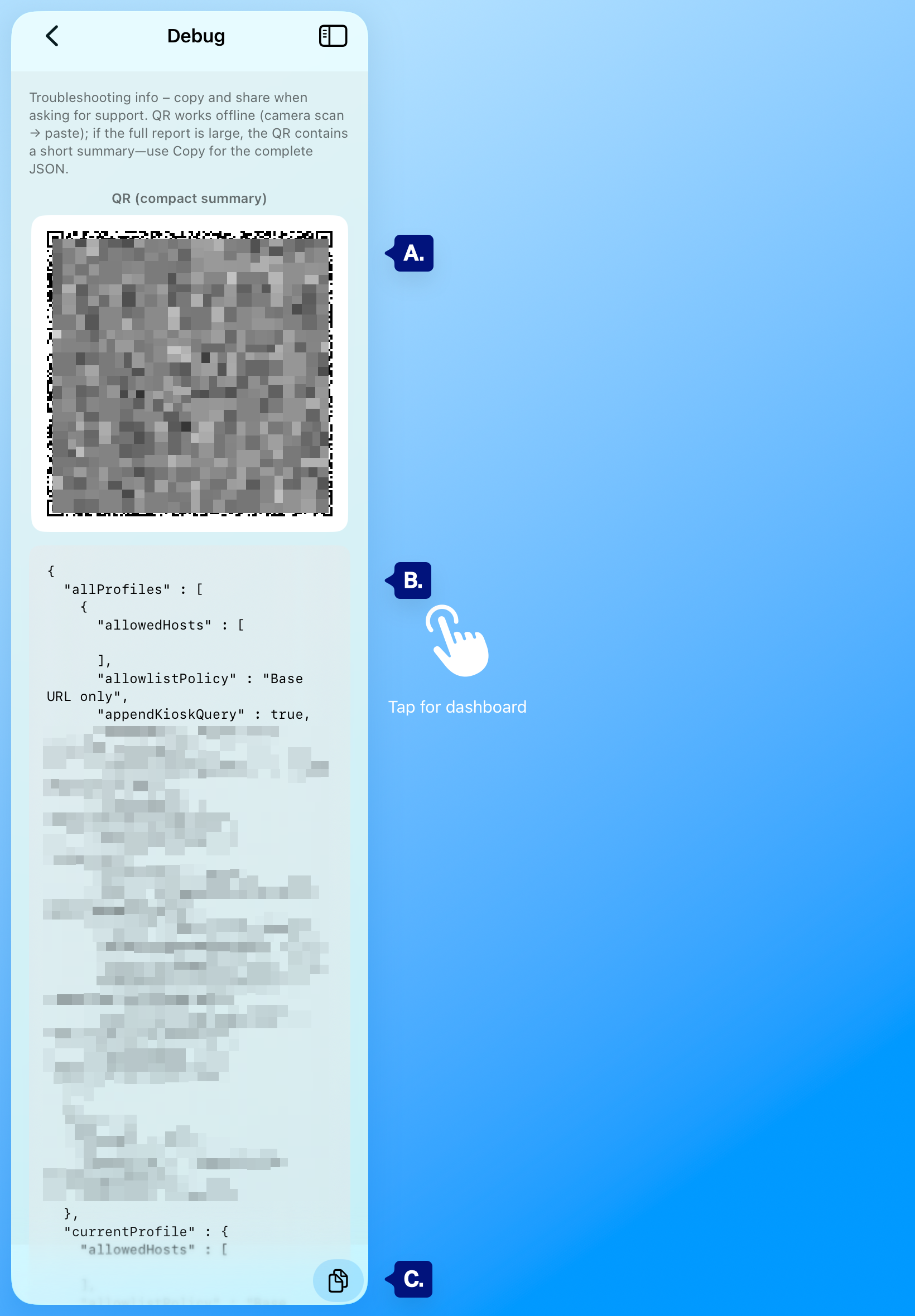
A. Diagnostic content (JSON or text)
B. QR Code of settings (do not share outside of secure means)
C. Copy (button or icon).
What the debug info contains #
The content typically includes (names may vary):
- Profiles — Your connection(s): Home Assistant URL (base URL), Dashboard path, Append ?kiosk on/off, connection type, and whether a token is stored.
- App — App version and build (e.g. version, build number, bundle ID).
- Subscription — Whether Pro is active, product ID, and expiry (if applicable).
Use this to confirm the URL, Dashboard path, and Pro status, and to see whether kiosk mode is enabled. Do not share this screen publicly; it can reveal your HA URL and profile details. Share only in private channels (e.g. support ticket, direct message).
Copying and sharing for support #
- Tap Copy (or the copy icon). The full diagnostic text is copied to the clipboard.
- Paste it into your support message (email, ticket, or chat). You can paste into Notes or Mail first to check it.
- Add a short description of the issue (e.g. “Dashboard won’t load,” “Events not received in HA,” “Re-auth fails”).
If your device is offline you can take a photo of the QR code with another device and share it in our contact form.
Support can use this to see your configuration without asking you to type URLs or version numbers. If the content is long, some channels may truncate it; in that case, paste into a file or pastebin and send the link if support allows.
When to use Debug #
- Dashboard won’t load — Confirm base URL and Dashboard path; check for token.
- “Authentication error” or re-auth fails — Check that a token is present and base URL matches your HA instance.
- Events not received in Home Assistant — Confirm Pro is active and “Send kiosk events to HA” is on (if that’s shown in the payload).
- Subscription / Pro issues — Verify subscription status and expiry in the debug output.
- Before contacting support — Copy the debug info and attach or paste it in your first message so support can see your setup.
Troubleshooting #
- Copy doesn’t work — Ensure you tapped Copy and that the app has clipboard access. Try pasting into Notes or Mail right after copying.
- Content looks truncated — Scroll to the bottom before copying so the full block is in view; the copy action usually captures the full text even if the screen is scrollable.
- Worried about sharing — The info can include your Home Assistant URL and profile details. Share only through private, trusted channels (support ticket, DM). Do not post in public forums.
Next steps #
- Connection (re-authenticate, clear cache) — If the issue is connection or auth.
- Events not received in Home Assistant — If events aren’t reaching HA.
- Account (How-to, Transfer, Debug, Pro, Sign out) — Back to Account options.