
n the Admin panel → Device you control display behavior and Admin PIN: Keep screen on, Hide status bar, and Manage PIN (require PIN for admin access and change PIN). These options are useful for wall-mounted kiosks and shared devices.
What you’ll need #
- Admin panel open (swipe from left edge, then PIN or biometrics if required).
- To change your PIN: your current Admin PIN.
Opening the Device section #
In the admin sidebar, tap Device. The section expands and shows Keep screen on, Hide status bar, and Manage PIN.
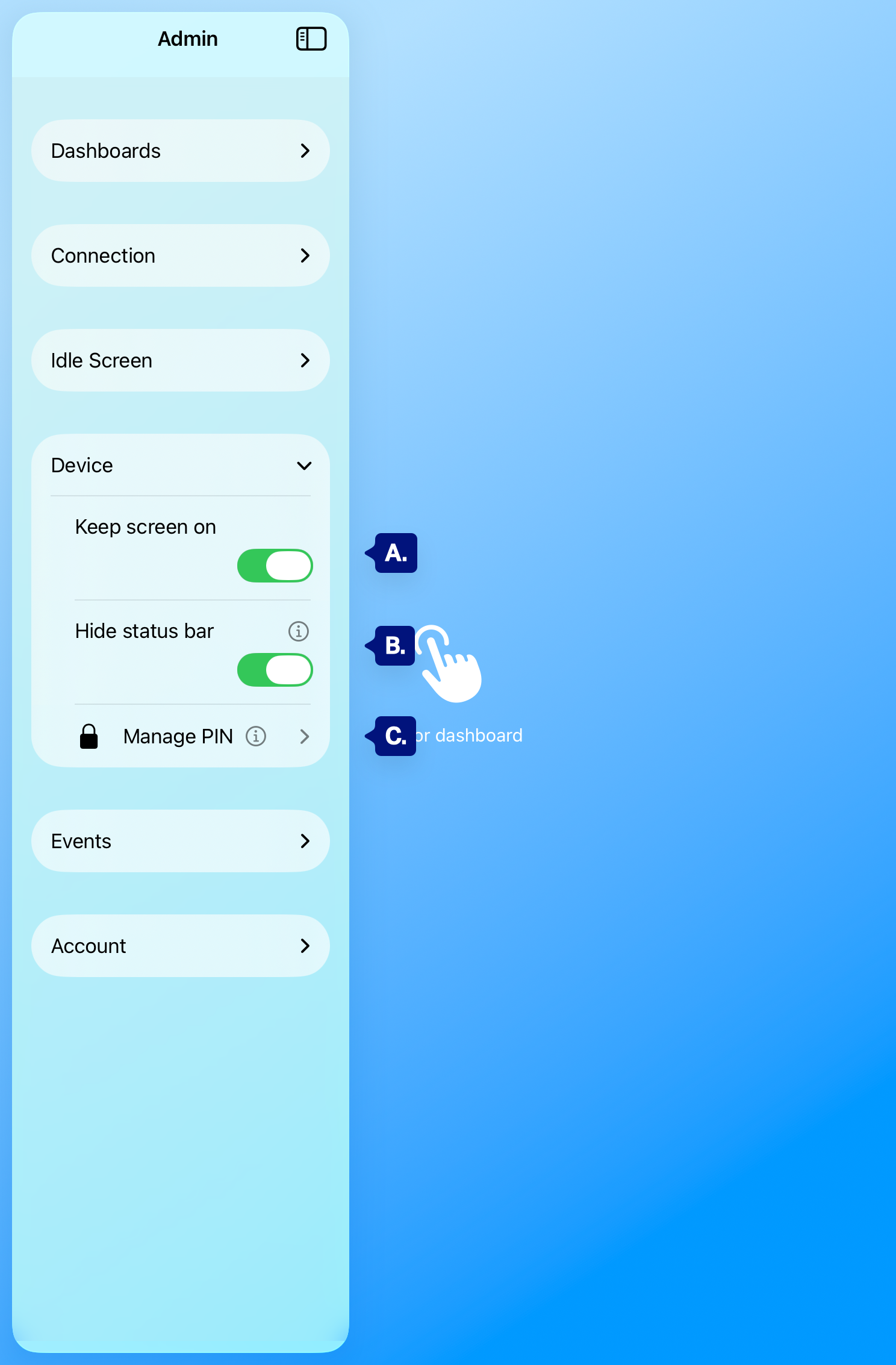
A. Keep screen on
B. Hide status bar
C. Manage PIN.
Keep screen on #
When Keep screen on is on, the app asks the device to stay awake so the screen doesn’t dim or lock from inactivity while the app is in use. Use it for always-on dashboards. For 24/7 use, also set Settings → Display & Brightness → Auto-Lock to Never (or a long interval) and keep the device plugged in.
[See A. above]
Hide status bar #
When Hide status bar is on, the iOS status bar (time, battery, signal) is hidden so the dashboard or Idle screen can use the full screen. Use it for a cleaner kiosk look. When off, the status bar is visible at the top.
[See B. above]
Manage PIN #
[See C. above]
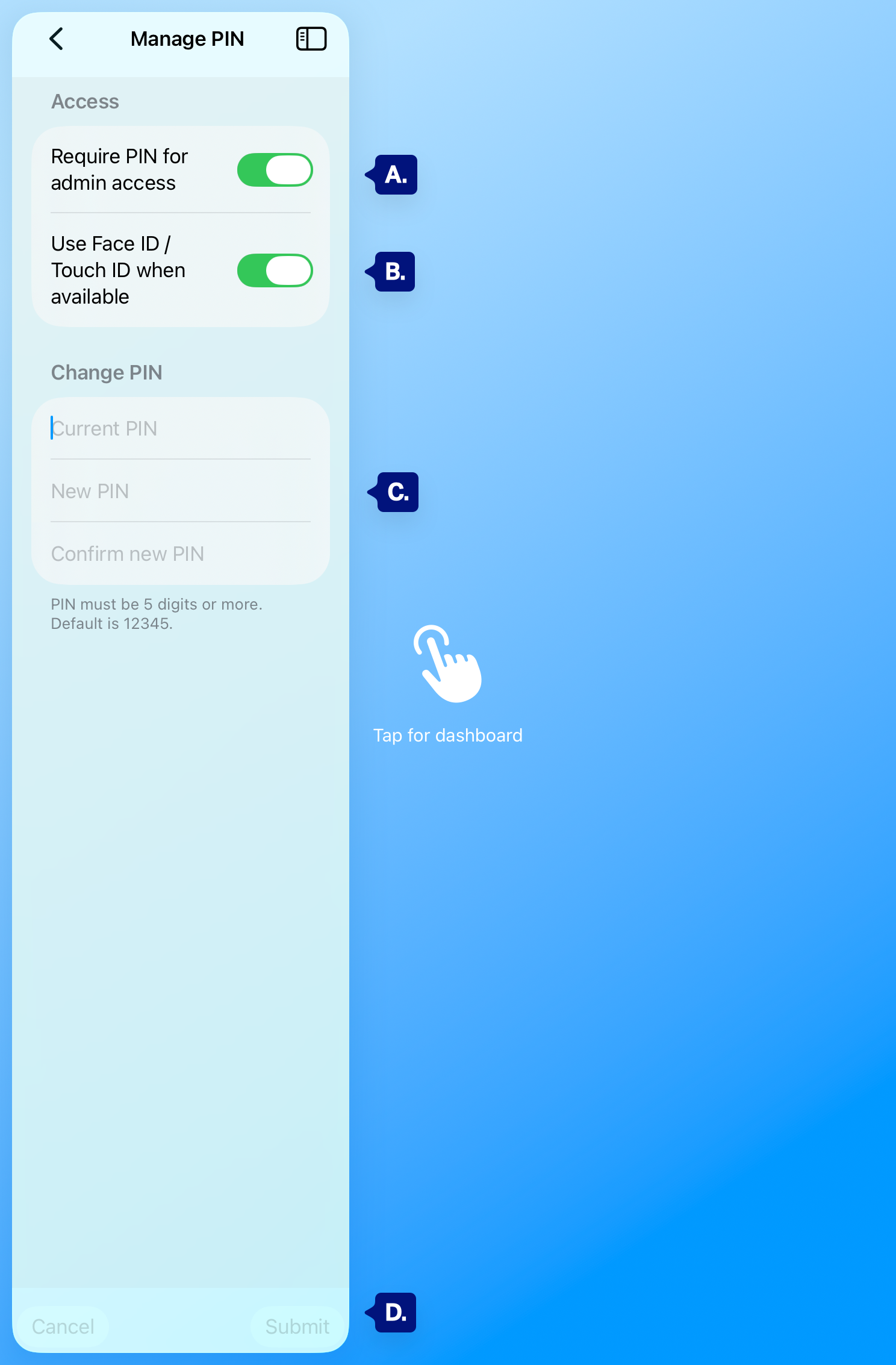
Tap Manage PIN to:
A. Turn Require PIN for admin access on or off — when on, opening the Admin panel requires your Admin PIN or Face ID / Touch ID.
B. When Biometrics are enabled (Face ID / Touch ID) on your devices you can enable them to unlock your admin screen when the pin is enabled.
C. Change PIN — enter Current PIN, New PIN, and Confirm new PIN, then tap Submit. The PIN must be 5 digits or more. If you never changed it, the default may be 12345.
Troubleshooting #
- Screen still dims or locks — Confirm Keep screen on is on and check Settings → Display & Brightness → Auto-Lock (e.g. set to Never for 24/7). Plug in the device so Low Power Mode doesn’t override behavior.
- Status bar still visible — Ensure Hide status bar is on. If it doesn’t change, fully leave the app and reopen it.
- Forgot current PIN — The app can’t show or reset it. If you can’t open the Admin panel, you may need to sign out (if available from the unlock screen) or reinstall the app and go through onboarding again. Use a PIN you’ll remember or store it securely.
- Submit (change PIN) doesn’t work — Check that Current PIN is correct, New PIN and Confirm new PIN match, and the new PIN is at least 5 digits.
Next steps #
- Opening the admin panel (gesture and PIN) — How to open the panel (and use PIN or biometrics).
- Admin PIN and security — First-time PIN setup during onboarding.
- Idle screen settings — Timeout and display when idle.