
In the Admin panel → Idle screen, you control when the Idle screen appears, how it looks, and how the kiosk wakes. This includes timeout, Fade to black, periodic refresh, background style, logo/icon, prompt text, and alignment.
What you’ll need #
• Admin panel open (swipe from left edge, then PIN or biometrics if required).
• For Pro-only options (Return to primary, Fade to black, Periodic refresh, custom image/logo): an active Pro subscription.
Step 1: Open the Idle screen section #
In the admin sidebar, tap Idle screen. The section expands and shows timing, behavior, and appearance controls.
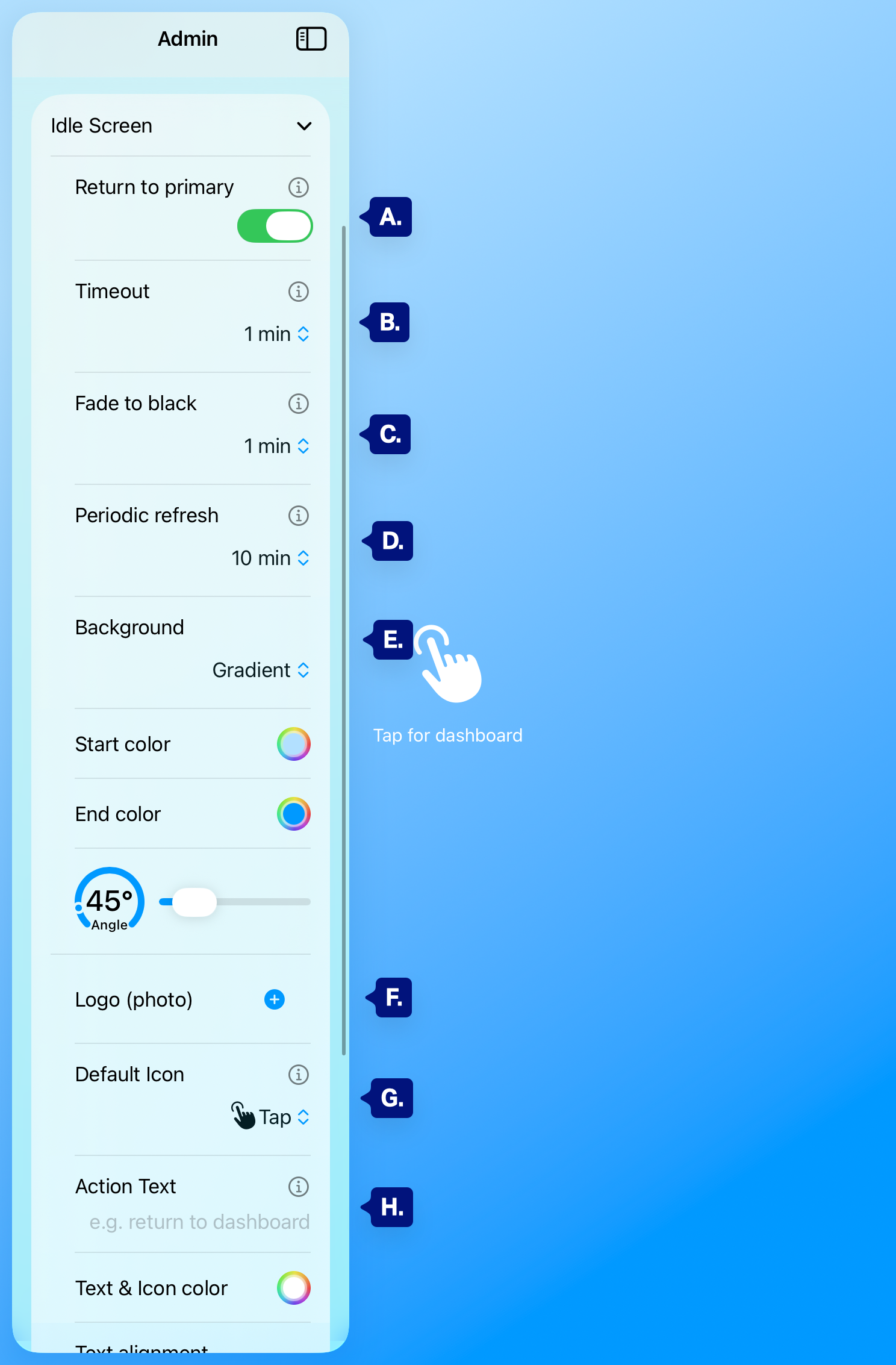
B. Timeout
D. Periodic refresh
E. Background
F. Logo Settings
G. Default Icon
H. Action Text Settings
Set wake behavior #
Return to primary (Pro) controls where the app goes after waking from idle/fade:
• ON: returns to the primary dashboard.
• OFF: returns to the last viewed dashboard.
[See A. above]
Set timeout #
Timeout controls when the Idle screen appears after no touch.
Shorter values show the Idle screen sooner; Off disables Idle screen activation.
- Off
- 1 min
- 5 min
- 10 min
- 15 min
- 20 min
- 30 min
- 60 min
[See B. above]
Set Fade to black #
Fade to black (Pro) controls when the screen transitions from idle to black to save power.
Tap or presence wake (if enabled) brings the display back.
- Off
- 1 min
- 5 min
- 10 min
- 15 min
- 20 min
- 30 min
- 60 min
[See C. above]
Set Periodic Refresh #
Periodic refresh (Pro) refreshes dashboards at intervals while visible (paused during idle/fade).
Use this to keep cards current without manual reloads
- Off
- 1 min
- 5 min
- 10 min
- 15 min
- 20 min
- 30 min
- 60 min
[See D. above]
Set Background #
Background controls the visual style of the idle and loading screen.
Choose Gradient for a clean color blend or Image (Pro) for a custom photo/art background.
In Gradient mode:
• Start color sets the first color in the blend.
• End color sets the second color in the blend.
• Angle controls the direction of the gradient transition (for example, 45° creates a diagonal blend).
Changing any of these updates the overall mood and contrast of the Idle screen.
[See E. above]
Set Logo\Logo settings (Pro) #
Logo settings (Pro) let you place a custom logo image over the idle background.
Use this for branding, room identity, or a cleaner custom look than a generic icon.
If no logo is set, the app shows the selected Default Icon instead.
[See F. above]
Set Default Icon #
Default Icon chooses the symbol shown on the Idle screen when no custom logo is active.
This is useful for quick visual context (for example, house, kitchen, office, tap).
Pick an icon that matches the location of where the devices is so users know where they are at a glance.
[See G. above]
Set Action Text #
Action Text settings control the prompt shown on the Idle screen (for example, “Tap for dashboard”).
Use short, clear wording so anyone can wake the kiosk quickly.
You can also tune readability with:
- Text & icon color (contrast against background)
- Text alignment (left, center, right based on layout/branding)
[See H. above]
Troubleshooting #
• Idle screen never appears — Ensure Timeout is not Off, and check device sleep settings.
• Fade to black missing or disabled — Fade to black is Pro-only.
• Prompt text/icon hard to see — Increase contrast with Text & icon color.
• Custom image/logo not applying — Confirm Pro is active and image selection succeeded.
Next step #
After Idle screen settings, see Device (keep screen on, hide status bar, Manage PIN) for kiosk hardware behavior and admin security controls.