
Manage PIN is where you turn Require PIN for admin access on or off and change your Admin PIN. You open it from the Admin panel → Device → Manage PIN. This article covers each option and how to use it.
What you’ll need #
- Swipe to access Admin (swipe from left edge, then current PIN or Face ID / Touch ID if required).
- Your current Admin PIN if you want to change it.
Opening Manage PIN #
In the admin sidebar, tap Device, then tap Manage PIN. The Manage PIN screen shows Access (Require PIN for admin access) and Change PIN (current, new, confirm fields and Submit).
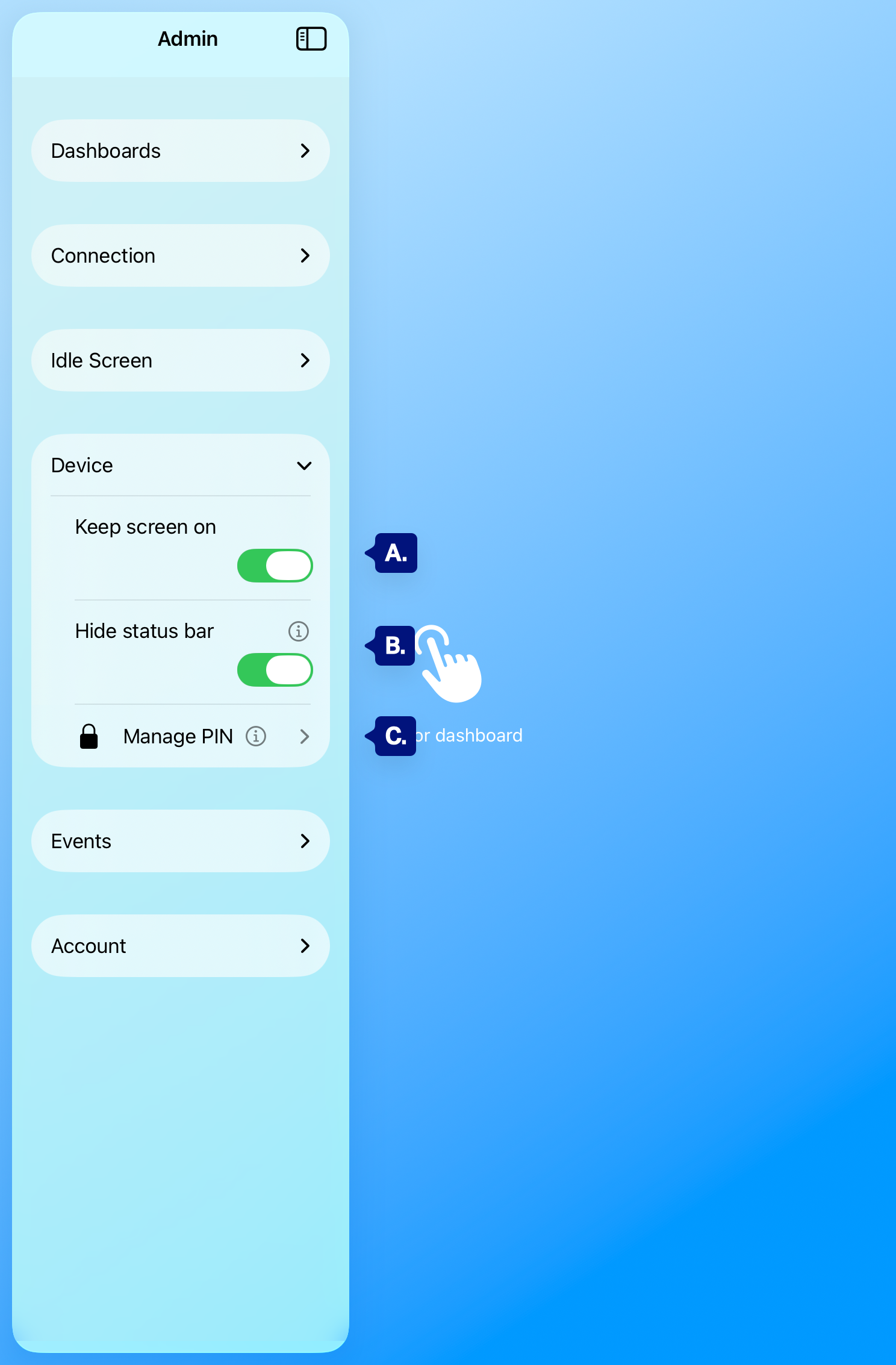
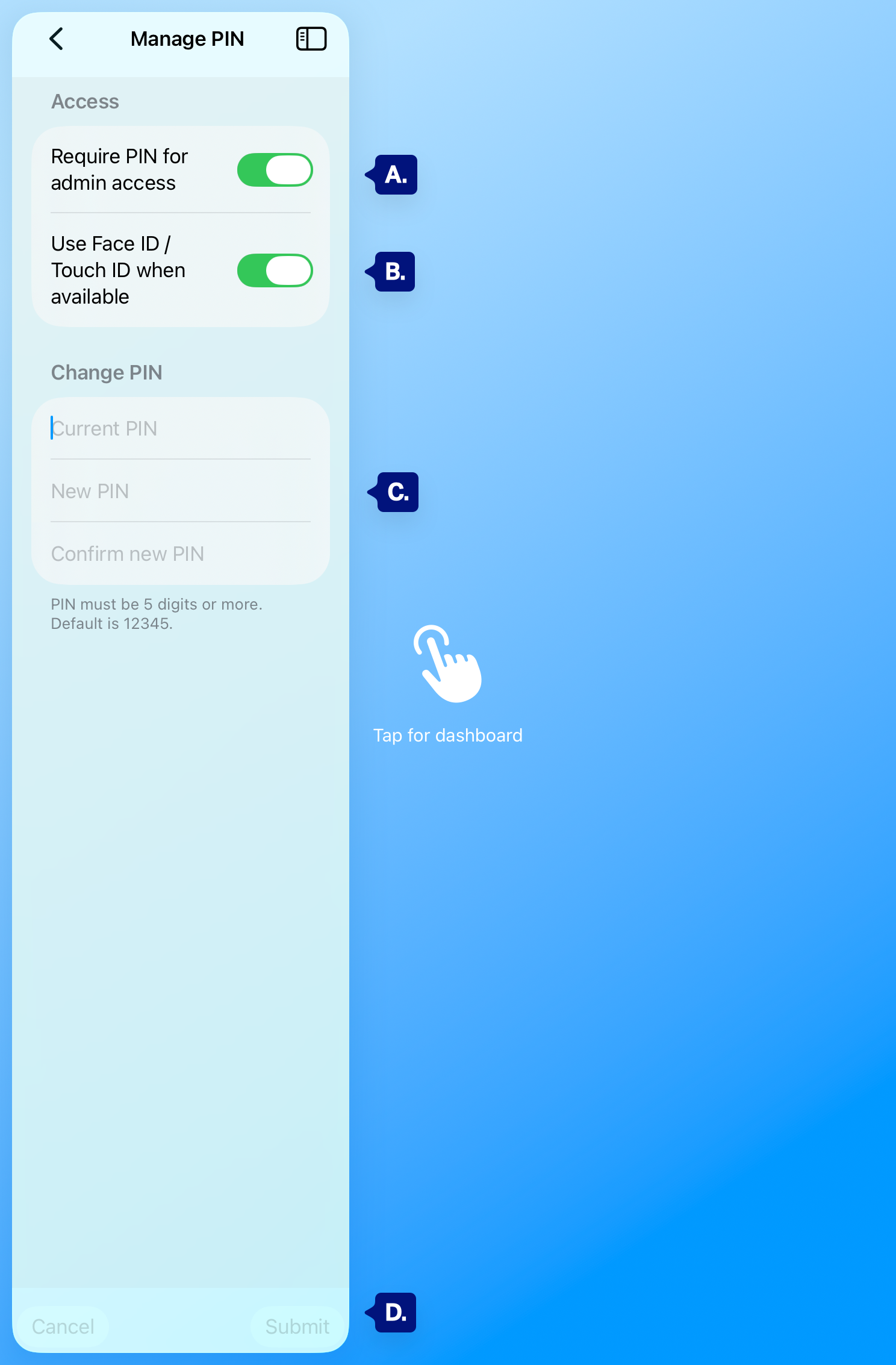
C. Admin Panel > Device > Manage PIN
A. Manage Pin Options > Require PIN for admin access
B. Manage Pin Options > Use Face ID / Touch Id when avalible
C. Change PIN (section)
D. Cancel / Submit.
Require PIN for admin access #
Under Access, the Require PIN for admin access toggle controls whether opening the Admin panel requires authentication:
- On — When someone swipes from the left edge to open the panel, they must enter the Admin PIN or use Face ID / Touch ID before seeing settings. Use this on shared or wall-mounted devices.
- Off — The panel opens as soon as the swipe completes, with no PIN or biometrics. Use only if the device is already locked to the app (e.g. Guided Access) and you don’t need an extra layer.
[See A. above]
Change PIN #
Under Change PIN you can set a new Admin PIN:
- Enter your current PIN in Current PIN.
- Enter the new PIN in New PIN.
- Enter the same new PIN again in Confirm new PIN.
- Tap Submit.
Rules:
- The PIN must be 5 digits or more.
- If you never changed it after setup, the default is often 12345 — change it for security.
[See C. Above]
Cancel and Submit #
- Cancel — Closes Manage PIN and returns to the Device section without saving changes (toggle or new PIN).
- Submit — Saves the Require PIN for admin access setting and, if you filled the Change PIN fields correctly, sets the new PIN. If current PIN is wrong or new/confirm don’t match, the app may show an error; fix and tap Submit again.
[see D. above]
Troubleshooting #
- Forgot current PIN — The app cannot show or reset it. If you can’t open the Admin panel at all, you may need to sign out (if the unlock screen offers it) or reinstall the app and go through onboarding again. After that, set a new PIN and consider storing it securely.
- Submit does nothing or “Wrong PIN” — Check Current PIN. Ensure New PIN and Confirm new PIN match and are at least 5 digits. Try again.
- Locked out after wrong attempts — Wait for the lockout period (e.g. “Try again in X seconds”) on the Enter PIN screen, then use the correct PIN or Face ID / Touch ID.
- Face ID / Touch ID not offered — Require PIN only affects the Admin panel. Biometrics are shown when the device supports them and they’re set up in iOS; if not, use the PIN.
Next steps #
- Opening the admin panel (gesture and PIN) — How to open the panel and unlock with PIN or biometrics.
- Device (keep screen on, hide status bar, Manage PIN) — Other Device options.
- Admin PIN and security — First-time PIN setup during onboarding.