Transfer settings lets you copy your app configuration between devices using a QR code or payload. You export on one device and import on another so you don’t have to re-enter dashboards, URLs, and idle screen options. Tokens and PINs are not included for security—you sign in and set the Admin PIN again on the new device. Full transfer may require Pro.
What you’ll need #
- Admin panel open → Account → Transfer settings.
- Export: The device that already has the settings you want to copy.
- Import: The device that will receive the settings (same app installed); you’ll need to sign in and set the Admin PIN after import.
- For full transfer/import: an active Pro subscription (if the app restricts it to Pro).
Opening Transfer settings #
In the admin sidebar, tap Account, then Transfer settings. You’ll see Export and Import tabs (or similar). Choose Export to generate a QR code (or payload) on this device, or Import to scan or paste from another device.
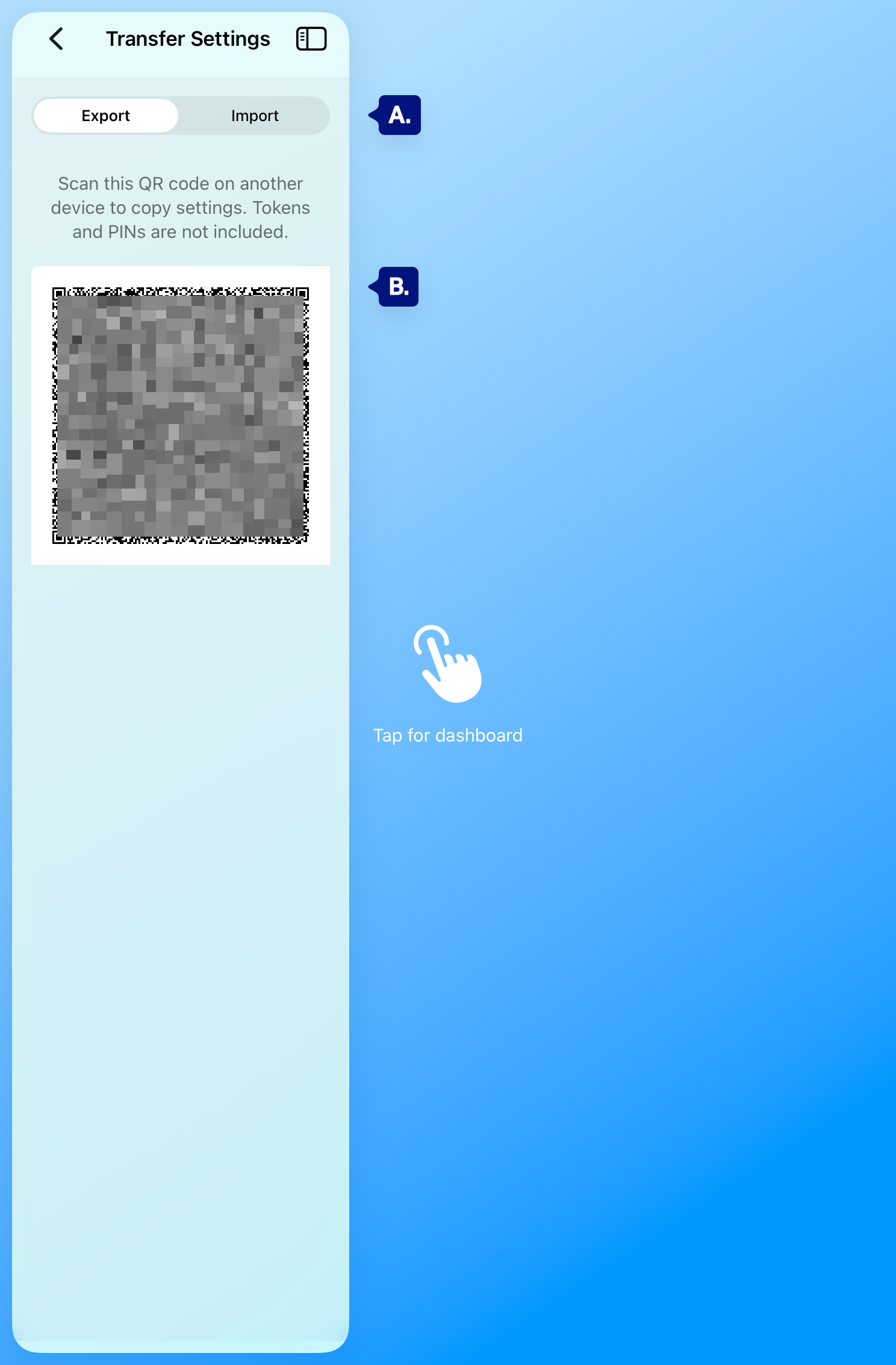
[Screenshot: Transfer settings screen – Export and Import tabs/toggles at top.]Optional diagram notation to add to this screenshot:
A. Export / Import
B. QR Code or Scanner
Export: share your settings #
- Open Transfer settings and make sure Export is selected.
- The app shows a QR code and short instructions (e.g. “Scan this QR code on another device to copy settings. Tokens and PINs are not included.”).
- On the other device, open the app, go to Admin → Account → Transfer settings, choose Import, and scan this QR code (or paste the payload if the app offers it).
- After import, on the new device sign in with a Long-lived access token and set the Admin PIN; those are never in the export.
[see B. above]
Import: apply settings from another device #
- On the device that will receive the settings, open the app and go to Admin → Account → Transfer settings.
- Tap Import (or switch to the Import tab).
- Scan the QR code shown on the source device’s Export screen, or paste the payload if the app supports it (e.g. from a shared note or message).
- The app applies the settings. Then sign in on this device (paste a Long-lived access token or complete in-app sign-in) and set the Admin PIN in Device → Manage PIN.
[see B. above]
After import #
- Sign in — The imported config has no token. Go to Admin → Connection → Re-authenticate (or complete onboarding sign-in if the app was fresh) and enter your Long-lived access token.
- Set Admin PIN — Go to Admin → Device → Manage PIN and turn on Require PIN for admin access and set your PIN.
- Verify — Check Admin → Dashboards and Idle screen to confirm dashboards and idle options look correct.
Troubleshooting #
- “Tokens and PINs are not included” — This is intentional. Always sign in and set the Admin PIN on the device that received the import.
- Import option grayed out or missing — Full import may require Pro. Check Admin → Account → Pro Features.
- QR code won’t scan — Keep the code flat, well lit, and fully in frame. Reduce glare; try a different distance. If the app supports it, use paste payload instead (export on source device, copy payload, paste on target in Import).
- Import failed or incomplete — Ensure the QR (or payload) was generated by the same app version or a compatible one. Try exporting again and re-importing.
Next steps #
- Signing in (long-lived access token) — How to get and enter a token after import.
- Manage PIN (require PIN, change PIN) — Set or change the Admin PIN after import.
- Account (How-to, Transfer, Debug, Pro, Sign out) — Other Account options.